For a lot of people, Apple’s built-in Mail app is all they need — but it really shines once you consolidate all your email accounts into it. Whether you’re on an iPhone or a Mac, the setup takes just a minute or two and makes staying on top of messages noticeably easier.
Once you’ve added multiple accounts, you can browse each inbox individually or view them all in a single combined inbox. It’s a small change that makes a real difference day to day.
Setting It Up on iPhone
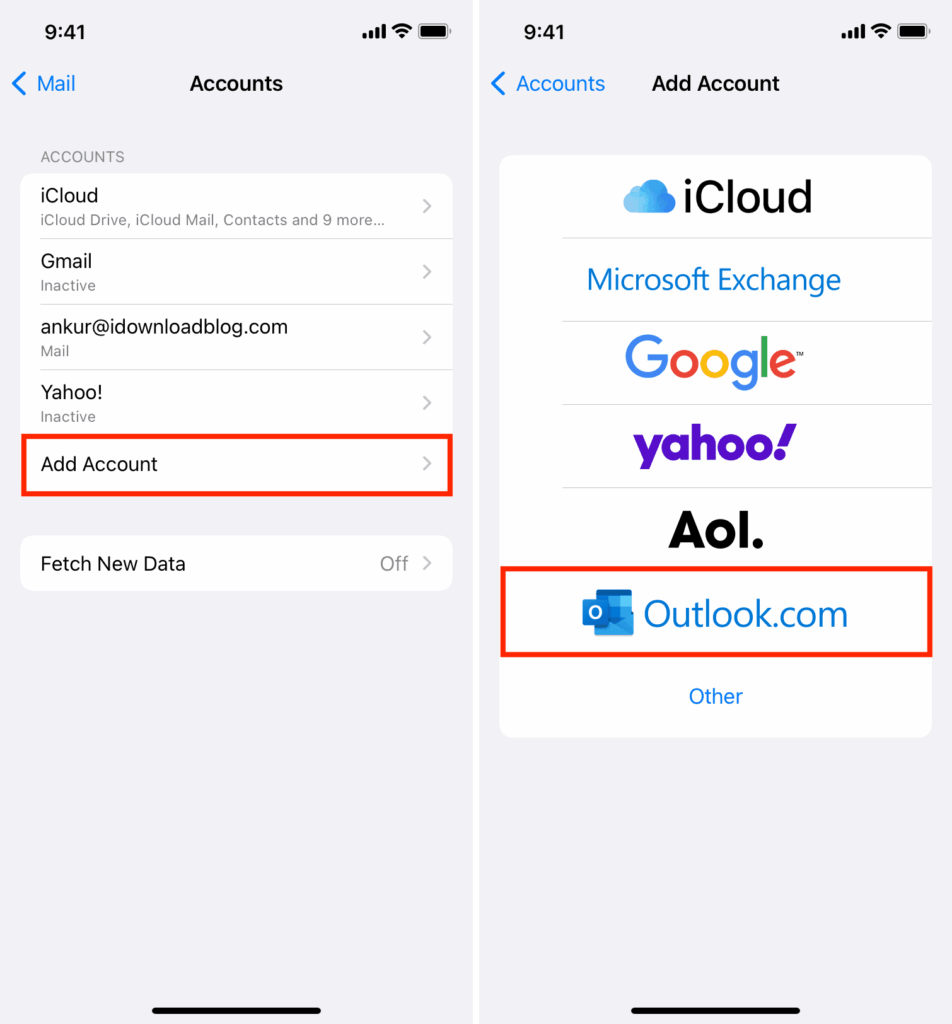
By default, Mail on iPhone only shows your iCloud inbox. Adding other accounts is straightforward:
- Open Settings
- Scroll down and tap Mail
- Tap Mail Accounts, then Add Account
- Choose your email provider and follow the on-screen steps
During setup, you’ll get the option to sync extras like contacts, calendars, and reminders alongside your email — or you can choose to bring in only your messages. Either way works fine.
Setting It Up on Mac
The Mac version of Mail works similarly, though the steps differ slightly. You actually have two ways to add an account:
Option 1: From within the Mail app:
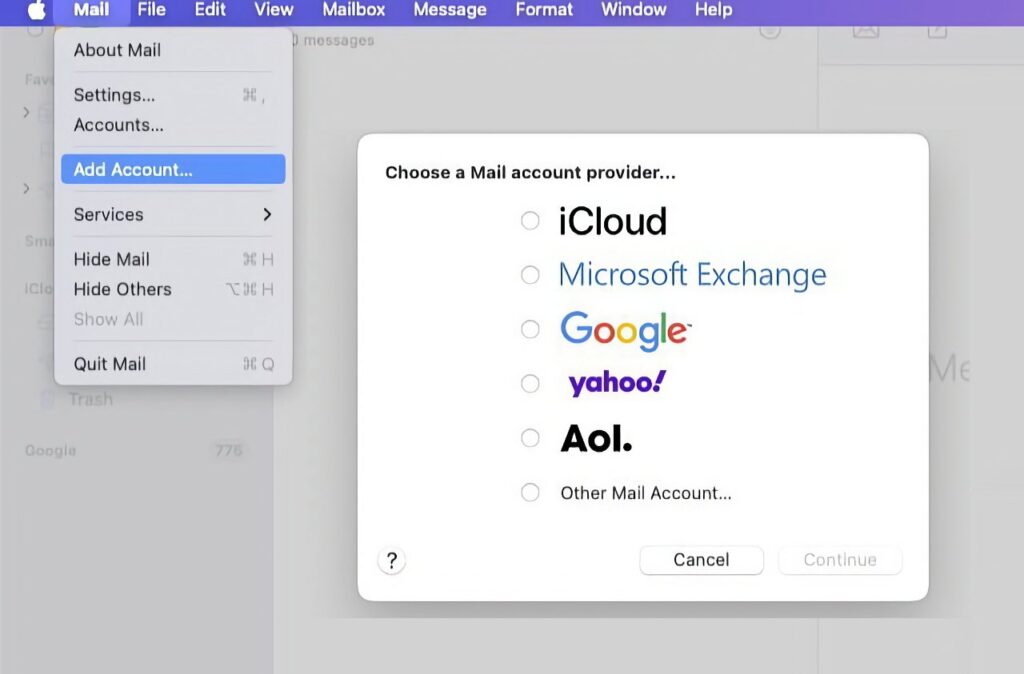
- Open Mail
- Click Mail in the menu bar
- Select Add Account, choose your provider, and follow the prompts
Option 2: Through System Settings:
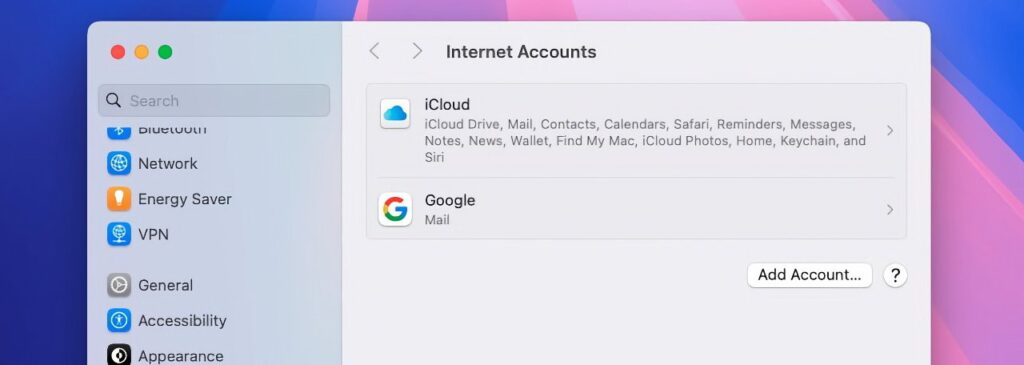
- Open System Settings
- Click Internet Accounts in the sidebar
- Select Add Account, pick your provider, and follow the steps
The System Settings route also lets you sync things like Google Calendar into Apple’s Calendar app — handy if you want tighter integration. As with iPhone, you can skip all that and just pull in your email if that’s all you need.
Either way, once it’s done, your inbox gets a whole lot easier to manage.
- How to Use Parental Controls in iOS 26 and iPadOS 26
- Disable Focus Sync on iPhone
- What is Adaptive Power on iPhone
- Why is Photo Shuffle Not Working on iPhone