When something goes wrong on your Windows 11 PC, you don’t always need a technician. Windows includes several built-in ways to find answers, diagnose common problems, and connect with Microsoft Support.
Whether you’re dealing with Wi-Fi problems, Bluetooth that won’t connect, a printer that stopped working, Windows Update errors, or simply don’t know how to use a feature, there are several ways to get assistance.
In this guide, you’ll learn how to get help in Windows 11 using the built-in Get Help app, Windows Search, Microsoft’s online support resources, troubleshooters, Quick Assist, and the Microsoft Community.
We’ll also explain which option to use for different types of problems so you can spend less time searching for a solution and more time using your PC.
What Is the Best Way to Get Help in Windows 11?
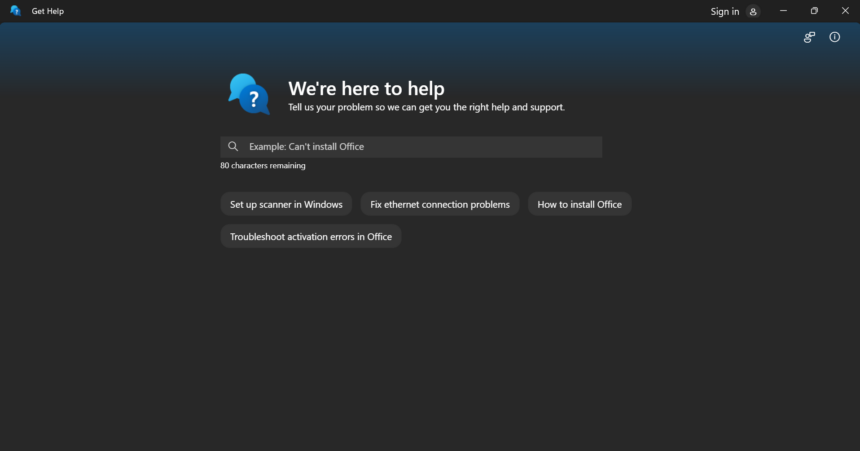
For most Windows 11 problems, the easiest place to start is the Get Help app.
Microsoft describes Get Help as a centralised place for tutorials, FAQs, troubleshooters, and support options. You can open it by selecting Start, typing Get Help, and selecting the app. (Microsoft Support)
You can also use:
- Windows Search for quick questions
- Settings > Get Help for help related to a particular setting
- Windows troubleshooters for common technical problems
- Microsoft Support for more complicated issues
- Quick Assist when someone you trust needs to help you remotely
- Microsoft Community for advice and discussions
- Feedback Hub for reporting bugs or suggesting improvements
The best option depends on what you’re trying to accomplish.
How to Open Get Help in Windows 11
The Get Help app is the main built-in support tool in Windows 11.
The quickest method is:
- Select Start.
- Type Get Help in the search box.
- Select Get Help from the results.
- Type your question or describe the problem.
- Review the suggested solutions and troubleshooting options.
Microsoft recommends keeping the question concise. For example, instead of writing a long description, try:
- “Wi-Fi won’t connect”
- “Bluetooth not working”
- “Windows Update failed”
- “Printer won’t print”
- “How do I change my desktop background?”
Get Help searches for relevant resources and can offer troubleshooting steps. (Microsoft Support)
You can also access help while you’re already working in Windows Settings.
Press Windows + I to open Settings and look for the relevant help option. Microsoft notes that Get Help can be accessed from Settings to find information related to the setting you’re using. (Microsoft Support)
This can be particularly useful if you’re trying to understand a Windows feature rather than fix a major technical problem.
How to Search for Help in Windows 11
Windows Search can be useful when you aren’t sure where a setting, application, or file is located. Select the Search box on the taskbar and type your question or keywords.
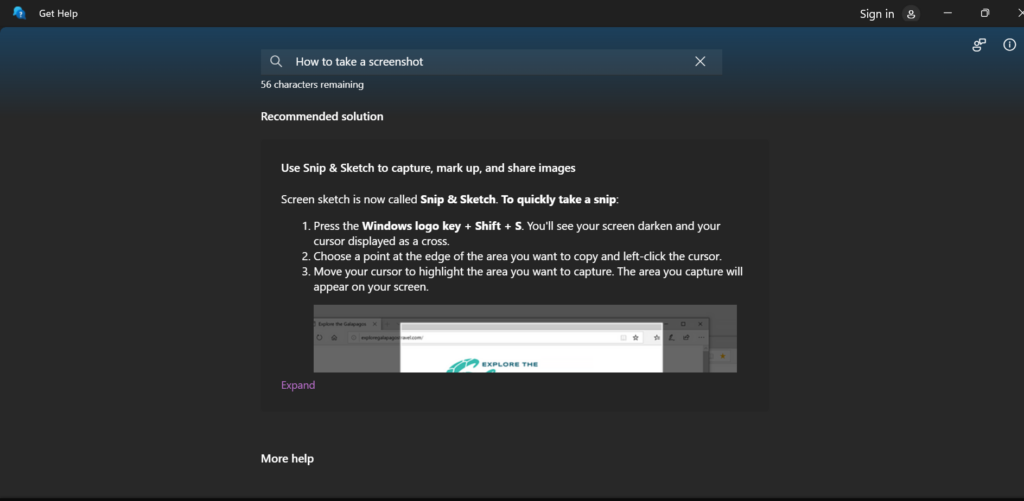
For example:
- “How to screenshot Windows 11”
- “How to connect Bluetooth headphones”
- “How to change screen brightness”
- “How to uninstall an app”
- “How to update Windows 11”
Windows Search can help you find applications, files, settings, and web-based help. (Microsoft Support)
For technical problems, however, the Get Help app is usually a better starting point because it includes troubleshooting resources.
Use Windows 11 Built-in Troubleshooters
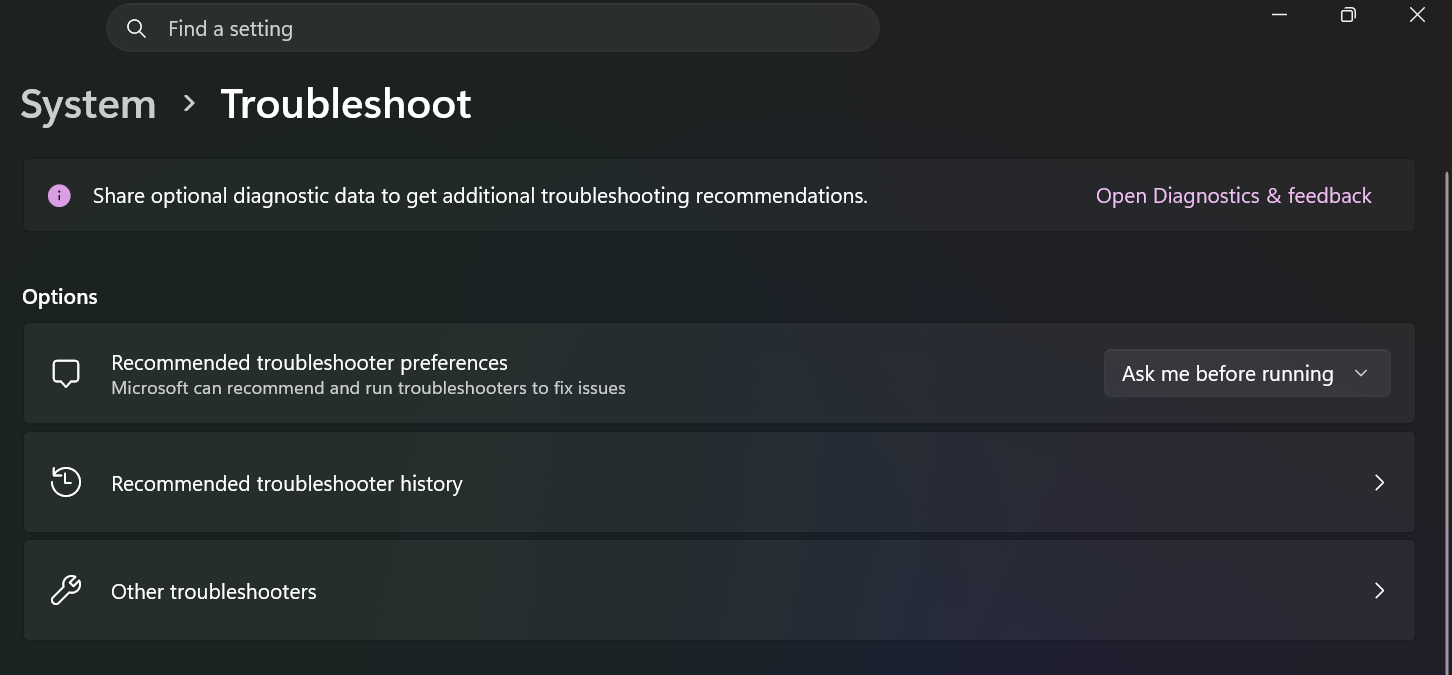
If something isn’t working correctly, Windows may have a troubleshooter designed for that particular problem. Microsoft’s Get Help system includes diagnostic tools for several common issues, including:
- Audio
- Bluetooth
- Camera
- Network and internet
- Printers
- Program compatibility
- Video playback
- Windows Update
- Background Intelligent Transfer Service (BITS)
To use one, open Get Help and search for the relevant troubleshooter. For example, you can search for Bluetooth troubleshooter if your wireless device isn’t connecting. (Microsoft Support)
The troubleshooter can check your configuration and provide recommended actions.
Fix Wi-Fi and Internet Problems
If your Windows 11 internet connection isn’t working, search Get Help for network and internet. The available diagnostic process can test the connection and suggest troubleshooting steps. (Microsoft Support)
Before running advanced troubleshooting, also try simple fixes:
- Check whether other devices can connect.
- Restart your router.
- Restart your computer.
- Make sure Wi-Fi is turned on.
- Check whether Airplane mode is enabled.
- Move closer to the router if the signal is weak.
If other devices also cannot connect, the problem may be with your network or internet provider rather than Windows.
Fix Bluetooth Problems
If Bluetooth headphones, keyboards, mice, or other devices aren’t working:
- Open Get Help.
- Search for Bluetooth troubleshooter.
- Follow the diagnostic instructions.
- Make sure Bluetooth is enabled.
- Check that the accessory is charged.
- Try disconnecting and pairing the device again.
Microsoft provides a dedicated Bluetooth troubleshooter through Get Help. (Microsoft Support)
Fix Printer Problems
If your printer isn’t printing, search Get Help for printer troubleshooter.
You should also check:
- Whether the printer is powered on
- Whether it is connected to the correct network
- Whether Windows recognizes the printer
- Whether the printer has paper and ink or toner
- Whether another print job is stuck in the queue
The Windows printer troubleshooter can help diagnose common connection and configuration problems. (Microsoft Support)
Fix Windows Update Problems
Windows updates can occasionally fail due to network issues, insufficient storage, damaged update components, or other configuration problems.
If an update won’t install, search Get Help for Windows Update troubleshooter and follow the recommended steps. (Microsoft Support)
You can also check Settings > Windows Update to see whether Windows is displaying an error message.
If you receive a specific error code, search for that exact code in Microsoft Support rather than trying random fixes.
Use Microsoft’s Windows Help and Learning Website
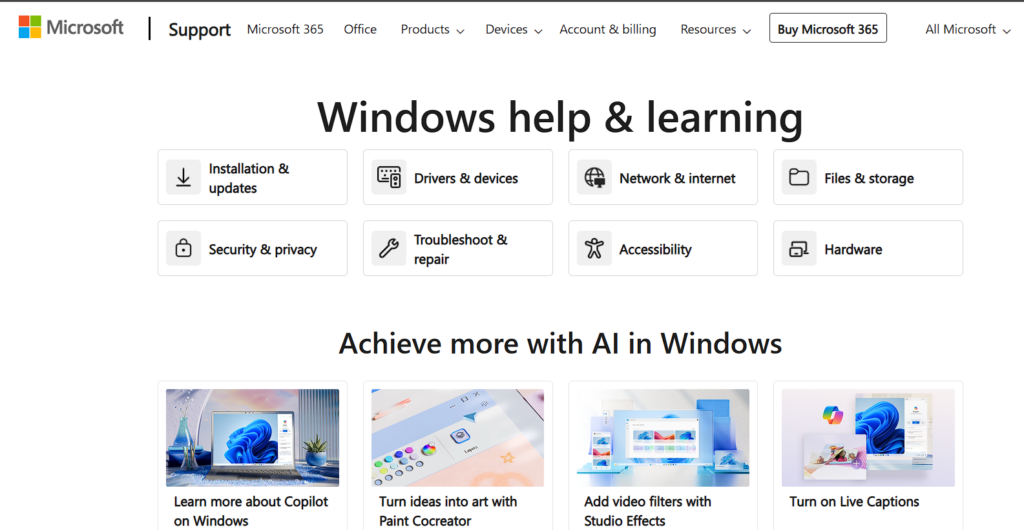
If the Get Help app doesn’t answer your question, Microsoft’s official Windows Help and Learning site is another excellent resource.
Microsoft Windows Help & Learning
The site organises Windows assistance into categories, including:
- Installation and updates
- Drivers and devices
- Network and internet
- Files and storage
- Security and privacy
- Troubleshooting and repair
- Accessibility
- Hardware
- Personalisation and everyday tasks
This is particularly useful when you’re looking for a detailed tutorial rather than an automated troubleshooting session. (Microsoft Support)
How to Contact Microsoft Support
If you can’t solve the problem yourself, you may be able to contact Microsoft Support.
Open Get Help and describe your problem. If the available troubleshooting options don’t solve it, you may be offered a Contact Support option.
Depending on the product, issue, account, and support availability, Microsoft says contact options can include:
- Chat with a support agent
- A support agent calling you
- A repair request for eligible hardware issues
Availability varies depending on the situation and other factors. (Microsoft Support)
You can also visit the official Microsoft support page: Contact Microsoft Support
What Information Should You Give Microsoft Support?
Before contacting support, gather useful details such as:
- Your Windows version
- Your PC manufacturer and model
- The application causing the problem
- The exact error message
- When the problem started
- What you were doing when it occurred
- Steps you’ve already tried
- Whether the issue happens every time
If you have an error code, write it down exactly.
Providing specific information can make troubleshooting much easier.
Get Remote Help With Quick Assist
Sometimes the easiest solution is to have someone you trust look at your PC.
Windows 11 supports Quick Assist, which allows one person to provide remote assistance to another.
You can open Quick Assist by searching for it from Start. Microsoft says the current Quick Assist app is available through the Microsoft Store. (Microsoft Support)
To receive help:
- Open Quick Assist.
- Have your trusted helper open Quick Assist.
- The helper generates a six-digit security code.
- Enter the code on your PC.
- Review the connection request.
- Allow screen sharing.
- If necessary, approve a request for control of your computer.
Quick Assist can be useful when helping a family member troubleshoot a computer remotely.
Important Quick Assist Safety Warning
Only allow remote access to someone you trust and have intentionally contacted.
Microsoft specifically warns about technical-support scams. A stranger who suddenly calls or displays a pop-up claiming your PC is infected should not automatically be given remote access. (Microsoft Support)
Never give a remote helper access simply because someone contacted you unexpectedly.
Ask the Microsoft Community
For unusual questions, the Microsoft Community can be another useful source of information.
You can search for your problem and see whether other Windows users have encountered something similar.
Community discussions can be helpful for:
- Unusual error messages
- Device compatibility
- Software conflicts
- Feature questions
- Problems affecting multiple users
However, community answers are not necessarily official Microsoft instructions. For important system changes, prefer Microsoft’s official documentation or verified support guidance.
Microsoft’s Windows support resources also provide access to community discussions and other learning resources. (Microsoft Support)
Use Feedback Hub to Report Windows Problems
There’s an important difference between getting help and reporting a problem to Microsoft.
If you need immediate assistance fixing a problem, use Get Help or Microsoft Support.
If you want to report a Windows bug, unexpected behaviour, or suggest a feature, use Feedback Hub. Microsoft specifically recommends Feedback Hub for product feedback rather than immediate technical support. (Microsoft Support)
To open Feedback Hub:
- Select Start.
- Search for Feedback Hub.
- Open the application.
- Search for similar feedback.
- Upvote an existing report or submit your own.
You can also press Windows + F to open Feedback Hub and capture a screenshot of the current screen. (Microsoft Support)
Common Windows 11 Problems and Where to Get Help
| Problem | Best place to start |
|---|---|
| Wi-Fi isn’t working | Get Help network troubleshooter |
| Bluetooth won’t connect | Get Help Bluetooth troubleshooter |
| Printer isn’t working | Get Help printer troubleshooter |
| Windows Update fails | Get Help Windows Update troubleshooter |
| You don’t know how to use a feature | Windows Help & Learning |
| You need Microsoft assistance | Get Help / Microsoft Support |
| A trusted person needs to control your PC | Quick Assist |
| You want to report a Windows bug | Feedback Hub |
| You need help with a Microsoft account | Microsoft account support |
Starting with the right tool can save significant time.
How to Get Help When Windows Won’t Start Properly
If your PC has trouble starting, your normal troubleshooting options may be limited.
First, try basic steps:
- Disconnect unnecessary USB devices.
- Make sure the computer is connected to power.
- Restart the PC.
- Note any error messages.
- If Windows repeatedly fails to start, use the available Windows recovery options.
If the problem involves a serious hardware failure, unusual noises, physical damage, or repeated crashes, consider contacting the PC manufacturer or a qualified technician.
Avoid following random internet instructions that involve deleting system files or changing advanced settings unless you understand what the steps do.
How to Get Better Answers When Asking for Windows Help
Whether you’re asking Microsoft Support, a community member, or searching online, specific questions produce better results.
Instead of:
“Windows is broken.”
Try:
“Windows 11 Wi-Fi disconnects every 10 minutes after the latest update.”
Include:
- The exact problem
- Your Windows version
- Error codes
- Your device model
- What changed recently
- Steps you’ve already attempted
Screenshots can also help explain visual errors, provided they don’t expose passwords, product keys, personal documents, or other sensitive information.
Common Mistakes to Avoid When Looking for Windows Help
Following Random Registry Fixes
The Windows Registry contains important system configuration information. Don’t make registry changes simply because an unfamiliar website recommends them.
Downloading Unknown “Repair” Programs
Be cautious with websites that claim your PC has hundreds of errors and require you to install a special repair utility.
Use Microsoft’s built-in tools and reputable software whenever possible.
Giving Strangers Remote Access
Never allow an unsolicited caller or suspicious website visitor to control your computer.
Use Quick Assist only with people you trust or through a legitimate support interaction.
Ignoring Error Messages
Don’t dismiss an error code.
Copy the exact message and search for it in official Microsoft documentation first.
Trying Too Many Fixes at Once
If you change ten settings simultaneously, you may not know which change fixed—or caused—the problem.
Make one change at a time when possible and test the result.
FAQ
How do I get help in Windows 11?
The easiest method is to open Start, search for Get Help, and describe your problem. The app can provide answers, troubleshooting tools, and, when available, options to contact Microsoft Support. (Microsoft Support)
Where is the Get Help app in Windows 11?
Select Start and type Get Help into the search box. Select the Get Help app from the search results. You can also access help from Windows Settings. (Microsoft Support)
How do I contact Microsoft about a Windows 11 problem?
Open the Get Help app, describe your problem, and follow the support options provided. Depending on the issue and availability, Microsoft may offer chat, a callback, or other support options. (Microsoft Support)
How can someone help me remotely with Windows 11?
Use Quick Assist with someone you trust. The helper can provide a six-digit code, which you enter into Quick Assist before allowing the connection. Only grant remote access to someone you trust or a legitimate support agent. (Microsoft Support)
What should I do if Windows 11 has a bug?
If you need immediate help fixing the issue, use Get Help or Microsoft Support. If you want to report a bug or unexpected behavior to Microsoft, use Feedback Hub. (Microsoft Support)
Knowing how to get help in Windows 11 can save you time, money, and frustration when something goes wrong.
Start with the Get Help app for everyday questions and common technical problems. Use Windows troubleshooters for issues involving Wi-Fi, Bluetooth, printers, audio, cameras, and Windows Update. For more detailed information, Microsoft’s Windows Help and Learning website is an excellent resource.
If you need another person to assist you, Quick Assist can connect you with someone you trust remotely. And when self-help isn’t enough, Microsoft Support may provide chat, callback, or other assistance depending on your situation.
The most important rule is to use trusted sources and be cautious with remote-access requests and unfamiliar repair software.