Typing special characters on a Chromebook can be confusing when you need something not printed directly on the keyboard. If you want to type an em dash (—), accented letter (é), copyright symbol (©), degree symbol (°), currency sign (£), or mathematical symbol (÷), there are several easy ways to do it.
This guide explains how to type special characters on a Chromebook using keyboard shortcuts, Unicode codes, Google Docs, Microsoft Word, copy and paste, and different keyboard layouts.
You will also find a complete reference table of useful Unicode punctuation, symbols, and accented characters.
How to Type Special Characters on a Chromebook
Chromebooks provide several ways to enter special characters. The best method depends on the character you need and the app you are using.
The easiest options are:
- Use the Chromebook’s on-screen emoji and symbol picker
- Use Unicode input where supported
- Copy and paste the character
- Use Google Docs’ special-character tool
- Change your keyboard language or layout
- Use keyboard shortcuts for commonly used characters
For occasional use, copying and pasting is usually the fastest option. If you frequently type accented letters or symbols, learning keyboard shortcuts or Unicode input can save a lot of time.
Use the Chromebook’s Symbol and Emoji Picker
One of the simplest ways to insert special characters is through the Chromebook’s built-in emoji and symbol tools.
Depending on your ChromeOS version and keyboard setup, you can access the available character picker from a text field or by using the appropriate keyboard shortcut.
You can then browse categories such as:
- Emoji
- Symbols
- Punctuation
- Currency
- Mathematical characters
- Special characters
Search is especially useful when you know the name of the symbol you want.
For example, instead of searching through hundreds of characters, you can search for terms such as copyright, degree, heart, or arrow.
This is the easiest option for beginners because you do not need to remember Unicode codes.
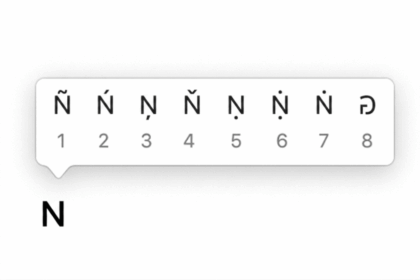
How to Type Accented Letters on a Chromebook
Accented letters are commonly needed when writing names, foreign-language words, academic content, or professional documents.
Examples include:
- à
- á
- â
- ä
- ç
- è
- é
- ñ
- ö
- ü
- ÿ
ChromeOS supports several keyboard layouts and input methods that make accented characters easier to enter.
If you regularly write in another language, adding that language to your keyboard settings can be more convenient than entering each accented character individually.
Common Accented Characters
| Character | Unicode | Character |
|---|---|---|
| À | 00C0 | À |
| Á | 00C1 | Á |
| Â | 00C2 | Â |
| Ã | 00C3 | Ã |
| Ä | 00C4 | Ä |
| Å | 00C5 | Å |
| Æ | 00C6 | Æ |
| Ç | 00C7 | Ç |
| È | 00C8 | È |
| É | 00C9 | É |
| Ê | 00CA | Ê |
| Ë | 00CB | Ë |
| Ì | 00CC | Ì |
| Í | 00CD | Í |
| Î | 00CE | Î |
| Ï | 00CF | Ï |
| Ð | 00D0 | Ð |
| Ñ | 00D1 | Ñ |
| Ò | 00D2 | Ò |
| Ó | 00D3 | Ó |
| Ô | 00D4 | Ô |
| Õ | 00D5 | Õ |
| Ö | 00D6 | Ö |
| Ø | 00D8 | Ø |
| Ù | 00D9 | Ù |
| Ú | 00DA | Ú |
| Û | 00DB | Û |
| Ü | 00DC | Ü |
| Ý | 00DD | Ý |
| Þ | 00DE | Þ |
| ß | 00DF | ß |
Lowercase Accented Characters
| Character | Unicode | Character |
|---|---|---|
| à | 00E0 | à |
| á | 00E1 | á |
| â | 00E2 | â |
| ã | 00E3 | ã |
| ä | 00E4 | ä |
| å | 00E5 | å |
| æ | 00E6 | æ |
| ç | 00E7 | ç |
| è | 00E8 | è |
| é | 00E9 | é |
| ê | 00EA | ê |
| ë | 00EB | ë |
| ì | 00EC | ì |
| í | 00ED | í |
| î | 00EE | î |
| ï | 00EF | ï |
| ð | 00F0 | ð |
| ñ | 00F1 | ñ |
| ò | 00F2 | ò |
| ó | 00F3 | ó |
| ô | 00F4 | ô |
| õ | 00F5 | õ |
| ö | 00F6 | ö |
| ø | 00F8 | ø |
| ù | 00F9 | ù |
| ú | 00FA | ú |
| û | 00FB | û |
| ü | 00FC | ü |
| ý | 00FD | ý |
| þ | 00FE | þ |
| ÿ | 00FF | ÿ |
How to Type an Em Dash on a Chromebook
The em dash (—) is one of the most useful punctuation marks when writing articles, emails, essays, and professional documents.
There are several ways to insert it.
The easiest option is to use a character picker or copy it from somewhere else.
You can also use Unicode input on supported ChromeOS/Linux-style input methods.
The Unicode value for an em dash is:
2014 — Em Dash
For comparison:
- Hyphen:
- - En dash:
– - Em dash:
— - Horizontal bar:
―
The em dash is longer than both the regular hyphen and the en dash.
Example:
The Chromebook was inexpensive—but it was surprisingly powerful.
If you frequently write online content, learning how to type an em dash can make your writing look more polished.
How to Use Unicode on a Chromebook
Unicode gives characters a standardized numerical code. This makes it possible to identify thousands of characters, symbols, punctuation marks, and accented letters.
For example:
2013= –2014= —2020= †2022= •2026= …00A9= ©00B0= °00B1= ±00D1= Ñ00E9= é
On supported ChromeOS/Linux-style input methods, Unicode characters can be entered by using:
Ctrl + Shift + U
Then type the Unicode value and confirm the character with Enter or Space.
For example, to enter an em dash:
Ctrl + Shift + U → 2014 → Enter
The exact behavior can vary depending on the ChromeOS version and active input method.
If Unicode input does not work on your Chromebook, use the character picker, Google Docs, or copy and paste instead.
Complete Unicode Punctuation Table
The following table provides a convenient reference for commonly used punctuation characters.
| Unicode | Character | Name |
|---|---|---|
| 2013 | – | En dash |
| 2014 | — | Em dash |
| 2015 | ― | Horizontal bar |
| 2017 | ‗ | Double low line |
| 2018 | ‘ | Left single quotation mark |
| 2019 | ’ | Right single quotation mark |
| 201A | ‚ | Single low-9 quotation mark |
| 201B | ‛ | Single high-reversed-9 quotation mark |
| 201C | “ | Left double quotation mark |
| 201D | ” | Right double quotation mark |
| 201E | „ | Double low-9 quotation mark |
| 2020 | † | Dagger |
| 2021 | ‡ | Double dagger |
| 2022 | • | Bullet |
| 2026 | … | Horizontal ellipsis |
| 2030 | ‰ | Per mille sign |
| 2032 | ′ | Prime |
| 2033 | ″ | Double prime |
| 2039 | ‹ | Single left-pointing angle quotation mark |
| 203A | › | Single right-pointing angle quotation mark |
| 203C | ‼ | Double exclamation mark |
| 203E | ‾ | Overline |
| 2044 | ⁄ | Fraction slash |
| 204A | ⁊ | Tironian et sign |
Complete Unicode Symbols Table
Special symbols are useful in documents, presentations, websites, messages, and technical writing.
| Unicode | Character | Name |
|---|---|---|
| 00A0 | Non-breaking space | |
| 00A1 | ¡ | Inverted exclamation mark |
| 00A2 | ¢ | Cent sign |
| 00A3 | £ | Pound sign |
| 00A4 | ¤ | Currency sign |
| 00A5 | ¥ | Yen sign |
| 00A6 | ¦ | Broken bar |
| 00A7 | § | Section sign |
| 00A8 | ¨ | Diaeresis |
| 00A9 | © | Copyright sign |
| 00AB | « | Left-pointing double angle quotation mark |
| 00AC | ¬ | Not sign |
| 00AD | | Soft hyphen |
| 00AE | ® | Registered sign |
| 00AF | ¯ | Macron |
| 00B0 | ° | Degree sign |
| 00B1 | ± | Plus-minus sign |
| 00B2 | ² | Superscript two |
| 00B3 | ³ | Superscript three |
| 00B4 | ´ | Acute accent |
| 00B5 | µ | Micro sign |
| 00B6 | ¶ | Pilcrow sign |
| 00B7 | · | Middle dot |
| 00B8 | ¸ | Cedilla |
| 00B9 | ¹ | Superscript one |
| 00BA | º | Masculine ordinal indicator |
| 00BB | » | Right-pointing double angle quotation mark |
| 00BC | ¼ | One quarter |
| 00BD | ½ | One half |
| 00BE | ¾ | Three quarters |
| 00D7 | × | Multiplication sign |
| 00F7 | ÷ | Division sign |
| 00BF | ¿ | Inverted question mark |
Currency Symbols You Can Type on a Chromebook
Currency symbols are frequently needed when writing product prices, invoices, financial documents, or international content.
Common examples include:
- $ — Dollar sign
- ¢ — Cent sign
- £ — Pound sign
- ¥ — Yen sign
- € — Euro sign
- ₹ — Indian rupee sign
Your keyboard layout may provide some currency symbols directly, while others can be inserted using the character picker, Unicode input, or copy and paste.
If you frequently write about prices in different countries, consider adding the relevant keyboard language or input method to your Chromebook.
Math Symbols on a Chromebook
Chromebooks are also useful for schoolwork, technical documents, spreadsheets, and mathematical writing.
Some commonly used mathematical symbols include:
| Symbol | Meaning |
|---|---|
| + | Plus |
| − | Minus |
| × | Multiplication |
| ÷ | Division |
| ± | Plus or minus |
| = | Equals |
| ≠ | Not equal to |
| < | Less than |
| > | Greater than |
| ≤ | Less than or equal to |
| ≥ | Greater than or equal to |
| ° | Degree |
| ² | Squared |
| ³ | Cubed |
| √ | Square root |
For more advanced mathematical notation, Google Docs and specialized online editors may provide additional tools.
How to Insert Special Characters in Google Docs
If you are writing in Google Docs on a Chromebook, you can use its built-in special-character feature.
Open your document and look for the option to insert a special character.
You can then:
- Open the special-character tool.
- Browse the available categories.
- Search for a character by name.
- Select the character.
- Insert it into your document.
You can search for terms such as:
- Em dash
- Copyright
- Degree
- Arrow
- Euro
- Mathematical
- Accent
- Check mark
Google Docs is one of the easiest options when you cannot remember a Unicode code point.
How to Insert Special Characters in Microsoft Word
If you use Microsoft Word on a Chromebook through the web or another supported setup, you can use Word’s character and symbol tools when available.
- Open your document and look for the option for inserting symbols or special characters.
- You can also copy a character from another source and paste it directly into Word.
- For frequently used characters, creating a reusable list can save time.
- For example, you might keep a small reference containing:
—
→
…
→
©
→
®
→
™
→
° →
±
→
×
→
÷
This can be particularly useful for bloggers, students, editors, and office workers.
Change the Keyboard Language on a Chromebook
If you regularly type in another language, changing your keyboard language can make accented characters and language-specific symbols much easier to enter.
ChromeOS supports multiple keyboard layouts and input methods.
You can add another language in your Chromebook’s settings and switch between available layouts as needed.
This is particularly useful if you regularly type:
- Spanish
- French
- German
- Portuguese
- Italian
- Hindi
- Other supported languages
Instead of manually inserting characters such as é, ñ, ü, à, or ç, the appropriate keyboard layout can make them much easier to access.
For multilingual users, changing the keyboard layout is often better than relying on Unicode codes.
Frequently Asked Questions
How do I type special characters on a Chromebook?
You can type special characters using the Chromebook’s character picker, copy and paste, Google Docs, keyboard language settings, or Unicode input where supported.
How do I type an em dash on a Chromebook?
You can insert an em dash using the character picker, copy and paste, or Unicode input where supported. The Unicode value for an em dash is 2014.
How do I type accented letters on a Chromebook?
You can use an appropriate keyboard language or input method, the character picker, Google Docs, or Unicode input. Common accented letters include é, ñ, ü, à, and ç.
What is the Unicode code for an em dash?
The Unicode code for an em dash is 2014, and the character is —.
Can I type symbols without a numeric keypad?
Yes. Chromebooks generally do not require a traditional numeric keypad for entering special characters. You can use the character picker, copy and paste, Google Docs, keyboard layouts, or supported Unicode input.
Learning how to type special characters on a Chromebook does not have to be difficult. Once you know a few simple methods, you can quickly insert punctuation marks, accented letters, currency symbols, mathematical characters, and other Unicode characters.
For occasional use, the character picker and copy-and-paste methods are the easiest choices. If you regularly work with special characters, learning Unicode input and keyboard shortcuts can make your workflow much faster.