

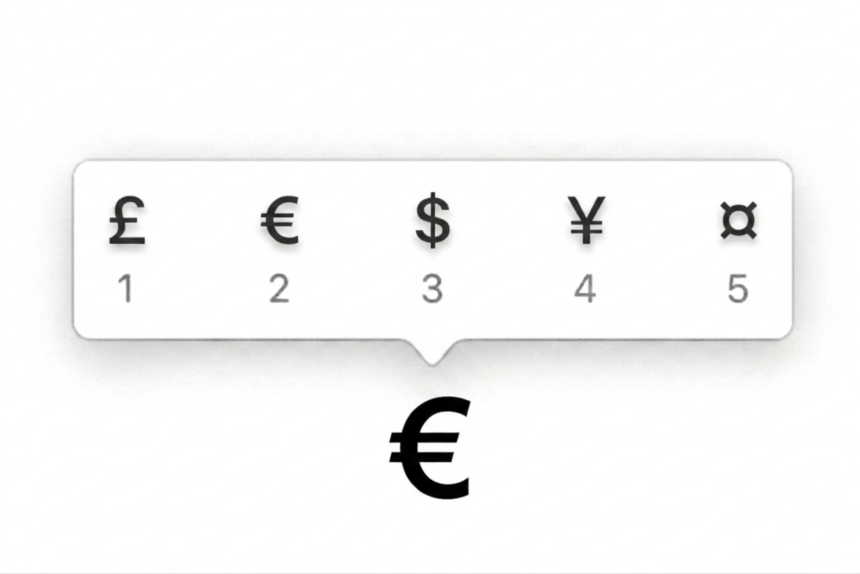
Need to type the euro symbol (€) quickly? You can insert it using a keyboard shortcut, built-in symbol picker, or simple copy and paste.
The exact method depends on the device and app you’re using. This guide covers the easiest ways to type € on Windows and Mac, along with instructions for Microsoft Word, Excel, Google Docs, iPhone, and Android.
Need the Symbol Right Now?
Copy this symbol and paste it wherever you need it:
€
What Is the Euro Symbol (€)?
The euro symbol (€) represents the euro, the currency used by many countries in Europe. It commonly appears in product prices, invoices, financial documents, hotel bookings, online stores, and spreadsheets.
The symbol can be entered directly from many keyboards, but the shortcut depends on your operating system and keyboard layout.
How to Type the Euro Symbol (€) on Windows
Windows gives you several ways to enter the euro sign. The Alt code is convenient if your keyboard has a dedicated numeric keypad, while the Windows symbol panel is easier on keyboards without one.
1. Use the Alt Code
The traditional Windows shortcut for the euro symbol is Alt + 0128.
Follow these steps:
- Make sure Num Lock is enabled.
- Hold down the Alt key.
- Enter 0128 using the numeric keypad.
- Release Alt.
The € symbol should appear.
Important: The number row above the letters usually won’t work for this shortcut. You generally need the dedicated numeric keypad.
On some laptops, an embedded numeric keypad may need to be enabled with a function-key combination such as Fn + Num Lock.
2. Use the Windows Symbol Panel
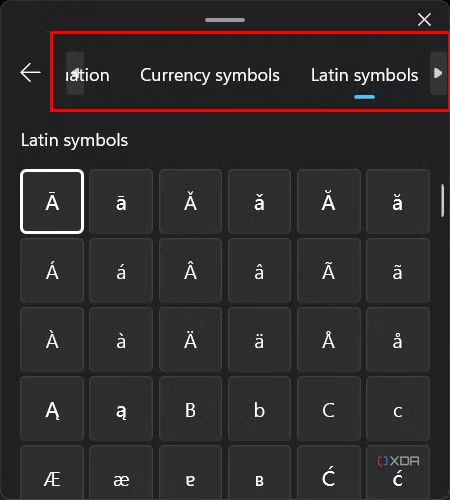
If your keyboard doesn’t have a numeric keypad, Windows has a simpler option.
- Click where you want to enter the symbol.
- Press Win + . or Win + ;.
- Open the Symbols section if necessary.
- Search for euro.
- Select €.
This method is useful when you don’t want to remember keyboard codes.
3. Use Character Map
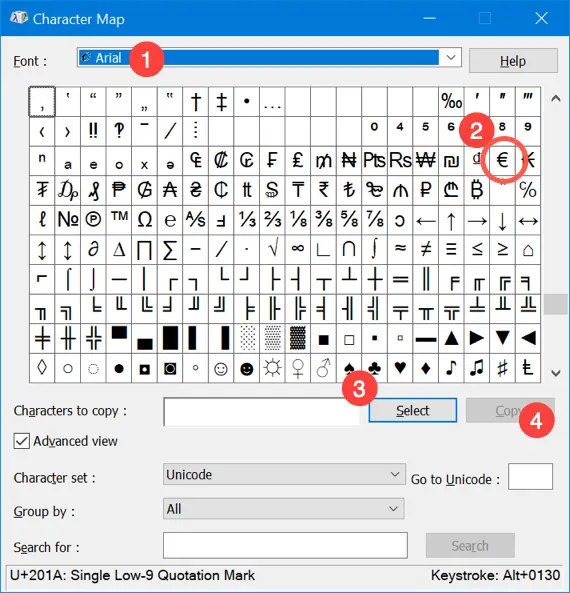
Windows also includes Character Map, which lets you find and copy special characters.
- Open the Start menu.
- Search for Character Map.
- Open the app.
- Find the € symbol.
- Select it and click Copy.
- Paste the symbol into your document or app.
Character Map is a handy fallback when keyboard shortcuts aren’t working.
How to Type the Euro Symbol (€) on Mac
Mac users can type the euro sign with a keyboard shortcut or through the built-in character viewer.
1. Use the Mac Keyboard Shortcut
The quickest option is:
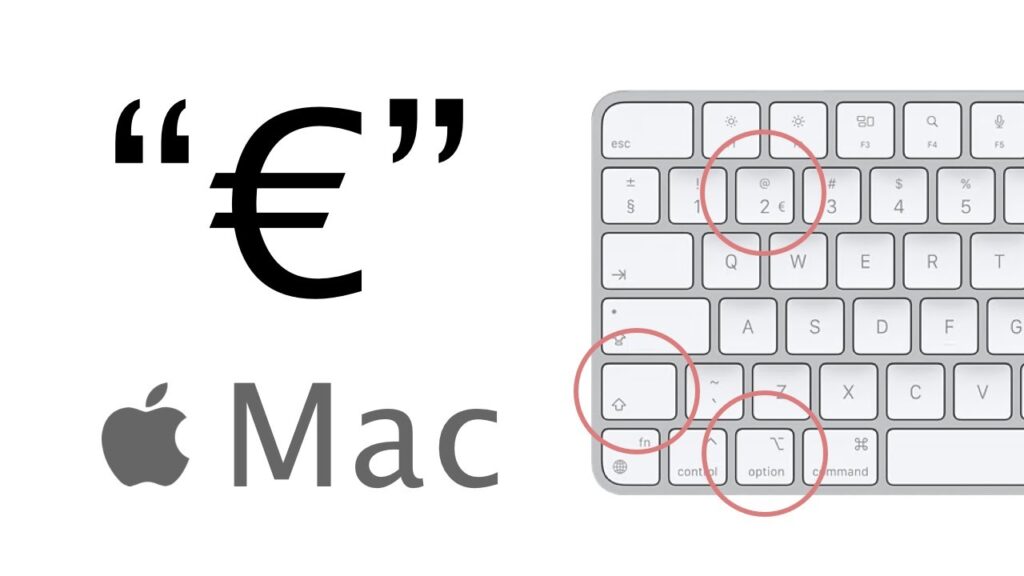
Option (⌥) + Shift + 2 → €
Press all three keys together, and the euro symbol should appear in most apps that accept normal text input.
2. Use the Character Viewer
You can also search for the euro sign using macOS’s built-in character picker.
- Click where you want to insert the symbol.
- Press Control + Command + Space.
- Search for euro.
- Double-click €.
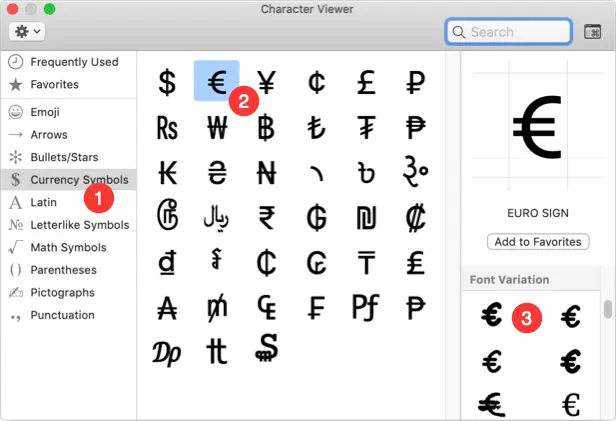
This is particularly useful if you’re unsure of the keyboard shortcut or use special characters regularly.
How to Type € in Microsoft Word
Microsoft Word supports keyboard shortcuts as well as its own symbol insertion tool.
Use a Keyboard Shortcut
On Windows:
Alt + 0128 using the numeric keypad
On Mac:
Option + Shift + 2
Insert the Euro Symbol from Word’s Menu
If you prefer using Word’s interface:
- Open your Word document.
- Place the cursor where you want the symbol.
- Select Insert.
- Click Symbol and then More Symbols.
- Find € in the character list.
- Click Insert.
This method is useful when keyboard shortcuts aren’t available or you need to find another currency symbol.
Create a Word AutoCorrect Shortcut
If you type the euro sign frequently, you can create an AutoCorrect entry.
For example, you could configure Word to replace euro with €.
- Go to File → Options → Proofing.
- Select AutoCorrect Options.
- Enter
euroin the Replace field. - Enter € in the With field.
- Click Add and then OK.
After that, typing your chosen shortcut followed by a space or Enter can automatically insert the euro symbol.
How to Type € in Microsoft Excel
In Excel, you can either insert the euro symbol as a character or format a number as euro currency.
Type the Euro Symbol Directly
You can use the same keyboard shortcuts:
- Windows: Alt + 0128
- Mac: Option + Shift + 2
This works well when you’re adding the symbol to a text label or a single cell.
Format Cells as Euro Currency
For actual prices and financial data, formatting the cell as currency is usually the better approach. It keeps the value as a number, allowing Excel to perform calculations while displaying the euro symbol.
To do this:
- Select the cells containing your amounts.
- Open the Home tab.
- Find the Number Format controls.
- Choose Currency or Accounting.
- Select the € Euro option if it is available.
This is preferable to typing € manually in front of every number when you’re working with formulas, totals, or large datasets.
How to Type the Euro Symbol in Google Docs
Google Docs includes a built-in tool for inserting special characters.
Insert € Using Special Characters
- Open your Google Docs document.
- Click Insert.
- Select Special characters.
- Search for euro.
- Click € to insert it.
Use Your Computer’s Keyboard Shortcut
You can also use your normal operating system shortcut:
- Windows: Alt + 0128 using the numeric keypad
- Mac: Option + Shift + 2
How to Type € on iPhone
The euro sign is usually available from the iPhone’s currency keyboard.
- Open the keyboard in any app.
- Tap 123.
- Press and hold the $ key.
- Select € from the available currency symbols.
If the symbol isn’t shown, your keyboard or regional settings may affect which currency symbols are available.
How to Type € on Android
Android keyboards can vary by device and keyboard app, but the euro symbol is commonly available via the number and symbol layout.
Try these steps:
- Open the keyboard.
- Tap ?123 or the symbols key.
- Look for €.
- If it isn’t visible, press and hold $ to check for additional currency symbols.
The exact layout can vary between keyboards such as Gboard and Samsung Keyboard.
Euro Symbol Not Working?
Alt + 0128 Doesn’t Work
If the Windows Alt code isn’t producing €, check the following:
- Make sure Num Lock is enabled.
- Use the numeric keypad, not the number row.
- Check whether your laptop requires an embedded keypad to be enabled.
- Try the Windows symbol panel with Win + . instead.
If none of those options work, Character Map or copy and paste are reliable alternatives.
Your Keyboard Shortcut Is Different
Keyboard layouts can change where special characters are located. If the Mac or Windows shortcut doesn’t work on your setup, use the operating system’s character or symbol picker instead.
Excel Is Changing the Formatting
If you’re working with prices in Excel, don’t manually add the euro sign to every value. Use Currency or Accounting formatting instead.
That way, Excel can continue treating the entries as numbers for calculations while displaying them as euro amounts.
Euro Symbol (€) Quick Reference
- Windows: Alt + 0128 with the numeric keypad
- Windows alternative: Win +. → search “euro”
- Mac: Option + Shift + 2
- Word: Insert → Symbol → More Symbols
- Excel: Format cells as Euro Currency
- Google Docs: Insert → Special characters → search “euro”
- iPhone: Press and hold $
- Android: Open symbols or press and hold $
- Universal option: Copy and paste €
Frequently Asked Questions
Can I type € without a numeric keypad?
Yes. On Windows, press Win + . and search for the euro symbol. You can also use Character Map, or insert the symbol through Word and Google Docs.
Another simple option is to copy and paste:
€
Should I Write €50 or 50 €?
Both formats are used, depending on the language and regional style.
€50 is common in English-language contexts, while 50 € is used in various European writing conventions. If you’re preparing formal financial or business content, follow the style used by your organization or target market.
What’s the easiest way to type €?
For most Windows users, the Win + . symbol panel is convenient because it doesn’t require a numeric keypad. On Mac, Option + Shift + 2 is the quickest shortcut.
If you only need the symbol once, copying € is even faster.









 quickly? You can insert it using a keyboard shortcut, built-in symbol picker, or simple copy and paste.)