

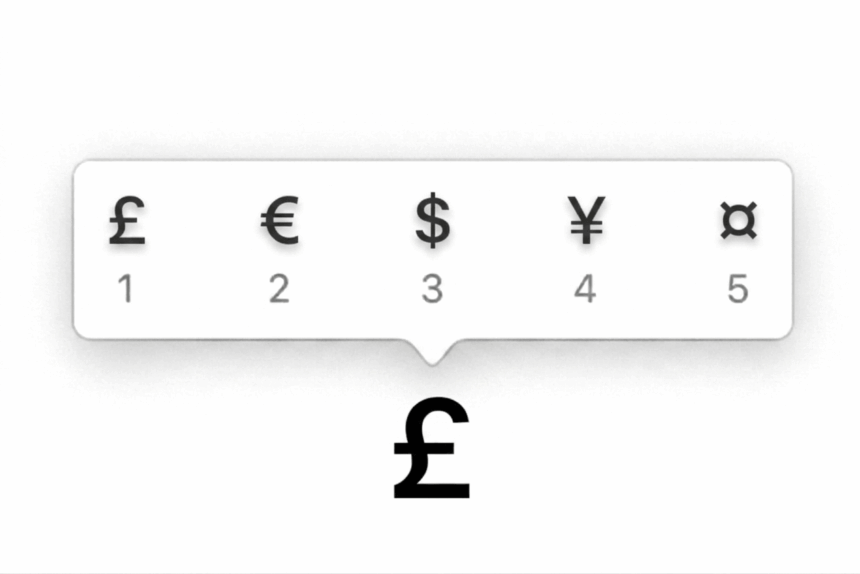
Need to type the pound symbol (£) but can’t find it on your keyboard? Whether you’re using Windows, Mac, Microsoft Word, Excel, Google Docs, iPhone, or Android, there are several quick ways to enter it.
The £ symbol represents the British pound sterling, but you don’t need a UK keyboard to type it. Depending on your device and keyboard layout, you can use a keyboard shortcut, Alt code, built-in symbol menu, or simply copy and paste it.
Here are the quickest methods first, followed by detailed instructions for each platform.
Copy and Paste the Pound Symbol
If you don’t want to use a keyboard shortcut, you can copy the symbol directly:
£
Select the symbol, copy it, and paste it wherever you need it. This works in documents, websites, emails, spreadsheets, messaging apps, and most other places that support text.
What Is the Pound Symbol (£)?
The pound symbol (£) is the currency sign used for the British pound sterling (GBP), the official currency of the United Kingdom.
You’ll commonly see it in:
- Product prices, such as £25
- Invoices and receipts
- Online stores
- Financial documents
- Budgets and spreadsheets
- Travel and currency information
The symbol is normally placed before the amount, so £25 is the standard format in English rather than 25£.
How to Type the Pound Symbol (£) on Windows
Windows gives you several ways to enter the pound sign. The best method depends on your keyboard layout.
1. Use Shift + 3 on a UK Keyboard
If you’re using a UK keyboard layout, the £ symbol is usually assigned to the number 3 key.
To type it:
- Hold Shift.
- Press 3.
- Release both keys.
You should see £.
If pressing Shift + 3 gives you # instead, your computer is probably using a US keyboard layout. Try one of the methods below instead.
2. Use the Windows Alt Code
Windows also supports an Alt code for the pound symbol.
To use it:
- Turn on Num Lock.
- Place the cursor where you want the symbol.
- Hold down Alt.
- Type 0163 using the numeric keypad.
- Release Alt.
The £ symbol should appear.
Keep in mind that the Alt code generally requires a numeric keypad. Typing 0163 using the number row above the letters may not work.
On some laptops with a compact keyboard, you may need to enable an embedded numeric keypad using the manufacturer’s keyboard shortcut.
3. Use the Windows Symbol Panel
If you don’t have a numeric keypad, Windows has a simpler option.
- Click where you want to enter the symbol.
- Press Win + . or Win + ;.
- Search for pound.
- Select £ from the results.
This is one of the easiest methods if you don’t want to remember keyboard codes.
4. Use Character Map
Windows Character Map provides another way to find and copy special characters.
- Open the Start menu.
- Search for Character Map.
- Open the app.
- Find the £ symbol.
- Select it and click Copy.
- Paste it into your document or application.
Character Map is especially useful when a keyboard shortcut isn’t working.
How to Type the Pound Symbol (£) on Mac
Typing the pound sign on a Mac is usually straightforward.
1. Use Option + 3
On a compatible UK keyboard layout:
Option + 3 = £
Place your cursor where you want the symbol, hold Option, and press 3.
If the shortcut produces a different character, check which keyboard layout is selected on your Mac.
2. Use the Character Viewer
You can also insert the pound sign through macOS’s built-in Character Viewer.
- Click where you want the symbol.
- Press Control + Command + Space.
- Search for pound.
- Double-click £ to insert it.
This method is useful when you don’t know the keyboard shortcut or are using a different keyboard layout.
How to Type £ in Microsoft Word
Microsoft Word supports keyboard shortcuts as well as its own symbol menu.
1. Use a Keyboard Shortcut
Depending on your keyboard, you can use:
- Windows UK keyboard: Shift + 3
- Windows Alt code: Alt + 0163
- Mac: Option + 3
2. Insert the Symbol Through Word
If you prefer using Word’s menus:
- Place the cursor where you want the symbol.
- Select Insert.
- Click Symbol.
- Choose More Symbols.
- Find £ in the symbol list.
- Click Insert.
You can use this method regardless of whether you remember the keyboard shortcut.
3. Create a Word AutoCorrect Shortcut
If you frequently type the pound sign, you can create your own AutoCorrect entry.
- Open Word.
- Go to File → Options → Proofing.
- Select AutoCorrect Options.
- Enter a shortcut such as
poundin the Replace box. - Enter £ in the With box.
- Click Add, then OK.
Afterwards, Word can automatically replace your chosen shortcut with the pound symbol according to your AutoCorrect settings.
How to Type £ in Microsoft Excel
There are two different ways to use the pound symbol in Excel, depending on what you’re trying to do.
Type £ as a Text Symbol
If you’re adding the pound sign to a text label, you can use the same shortcuts:
- Windows UK keyboard: Shift + 3
- Windows Alt code: Alt + 0163
- Mac: Option + 3
Format Numbers as Pound Sterling
For prices, invoices, budgets, and other financial data, it’s better to format the cells as currency rather than manually typing £ before each number.
This keeps the values as numbers, allowing Excel to calculate totals and formulas correctly.
To apply pound sterling formatting:
- Select the cells containing your amounts.
- Open the Home tab.
- Find the Number Format section.
- Choose Currency or Accounting.
- Select a £ currency option.
Excel will then display the pound symbol automatically while keeping the underlying values usable for calculations.
How to Type the Pound Symbol in Google Docs
Google Docs has a built-in special character tool that makes inserting £ simple.
Use Special Characters
- Open your Google Docs document.
- Place the cursor where you want the symbol.
- Select Insert.
- Click Special characters.
- Search for pound.
- Select £.
You can also use your normal keyboard shortcut if your keyboard layout supports it.
For example:
- Windows UK keyboard: Shift + 3
- Windows Alt code: Alt + 0163
- Mac: Option + 3
How to Type £ on iPhone
The pound symbol is available through the iPhone keyboard.
- Tap the 123 key to open the number and symbol keyboard.
- Press and hold the $ key.
- Select £ from the available currency symbols.
If £ isn’t shown immediately, check the additional symbol screens on your keyboard.
How to Type £ on Android
The exact keyboard layout can vary depending on whether you’re using Gboard, Samsung Keyboard, or another Android keyboard.
In most cases:
- Tap ?123 to open the symbols and numbers.
- Look for £.
- If you don’t see it, press and hold the $ key.
- Select £ if it appears.
The location of the pound symbol can differ between keyboards and language settings.
Pound Symbol Not Working?
Shift + 3 Types # Instead of £
This usually means your computer is using a US keyboard layout rather than a UK layout.
You can either use Alt + 0163, open the Windows symbol panel, or change your keyboard layout if you actually use a UK keyboard.
Alt + 0163 Doesn’t Work
Check the following:
- Make sure Num Lock is enabled.
- Use the numeric keypad rather than the number row.
- Check whether your laptop has an embedded numeric keypad.
- Try the Windows symbol panel instead.
Excel Doesn’t Display the Pound Sign Correctly
If you’re working with prices in Excel, don’t manually type £ into every cell.
Select the cells and apply Currency or Accounting formatting with the pound sterling currency selected. This lets Excel treat the entries as numerical values while displaying them with the correct currency symbol.
Pound Symbol (£) Keyboard Shortcuts: Quick Reference
| Device or App | Method |
|---|---|
| Windows UK keyboard | Shift + 3 |
| Windows Alt code | Alt + 0163 |
| Windows symbol panel | Win + . |
| Windows Character Map | Search for Character Map |
| Mac | Option + 3 |
| Microsoft Word | Insert → Symbol |
| Microsoft Excel | Currency/Accounting → £ |
| Google Docs | Insert → Special characters |
| iPhone | Press and hold $ |
| Android | Symbols keyboard or press and hold $ |
FAQ
Is the £ symbol the same as the # symbol?
No. The £ and # symbols are different characters. The shortcut used to type them depends on your keyboard layout. For example, Shift + 3 produces £ on many UK keyboards but # on US keyboards.
Should the pound symbol go before or after the number?
In standard English usage, the pound symbol goes before the amount. For example, write £25, not 25£.
What is the Alt code for the pound symbol?
The Windows Alt code for £ is 0163. Hold Alt and enter 0163 using the numeric keypad.
Why does Shift + 3 type # instead of £?
Your keyboard is most likely configured with a US layout. On many UK keyboard layouts, Shift + 3 produces £, while the same shortcut produces # on a US layout.









 but can't find it on your keyboard? Whether you're using Windows, Mac,)