Many iPad users don’t rush to install major system updates—and that’s completely normal. While Apple enables automatic updates by default, the process doesn’t always go as planned. In some cases, iPads remain on iPadOS 18 (or even iOS 17) instead of moving up to iPadOS 26.
This also applies to people who recently bought a new iPad. Quite a few devices are still shipping with iPadOS 18 preinstalled. For some users, that’s perfectly fine. For others, missing out on the latest features is a dealbreaker. If your iPad is currently running iPadOS 18—whether by choice or by accident—this guide will walk you through upgrading to iPadOS 26.
Why Upgrade to iPadOS 26?
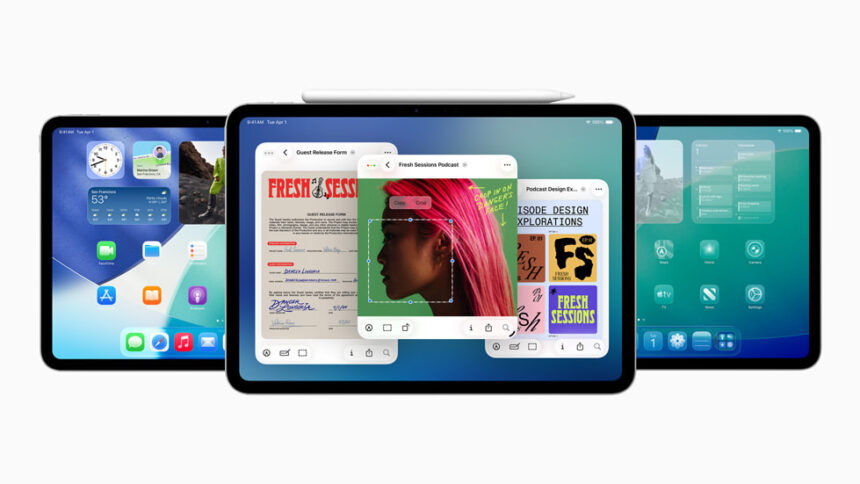
iPadOS 26 is a major step forward, not a minor tune-up. It introduces several features that noticeably change how the iPad feels and works, including:
- Windowed Apps mode, which allows Mac-like multitasking
- A cursor-activated menu bar that stays hidden until you need it
- The new Liquid Glass visual style across the system
- A redesigned Lock Screen
- Custom wallpapers inside Messages
- Improvements to key apps like Files, Preview, and Phone
Altogether, these changes make the iPad feel closer than ever to a full desktop-style experience.
Should You Install iPadOS 26 on an Older iPad?
This is where some caution is needed.
If you’re using a newer iPad, especially a larger-screen model, iPadOS 26 generally runs very well and really shows its strengths. However, if your iPad is already struggling with performance, upgrading may not be the best idea.
There have been multiple reports of slower performance on older hardware after installing iPadOS 26. If you’re using something like:
- An early iPad Pro 11″
- An older iPad Air (such as the 3rd generation)
You may want to stay on iPadOS 18 for smoother performance. In fact, this performance gap is one of the main reasons some users choose to upgrade their hardware instead of their software.
iPadOS 26 Compatibility Requirements
Before upgrading, make sure your device is supported. iPadOS 26 works with:
- iPad Pro 11″ (1st generation and newer)
- iPad Pro 12.9″ (3rd generation and newer)
- iPad Air (3rd generation and newer)
- iPad (8th generation and newer, including iPad A16)
- iPad mini (5th generation and newer)
You’ll also need at least 25 GB of free storage available.
How to Install iPadOS 26
Before starting, back up your iPad to iCloud or a computer. Skipping this step can result in data loss if something goes wrong.
To upgrade:
- Open the Settings app
- Tap General, then Software Update
- If iPadOS 26 appears, tap Update Now
- If it doesn’t show immediately, look for the Also Available section.
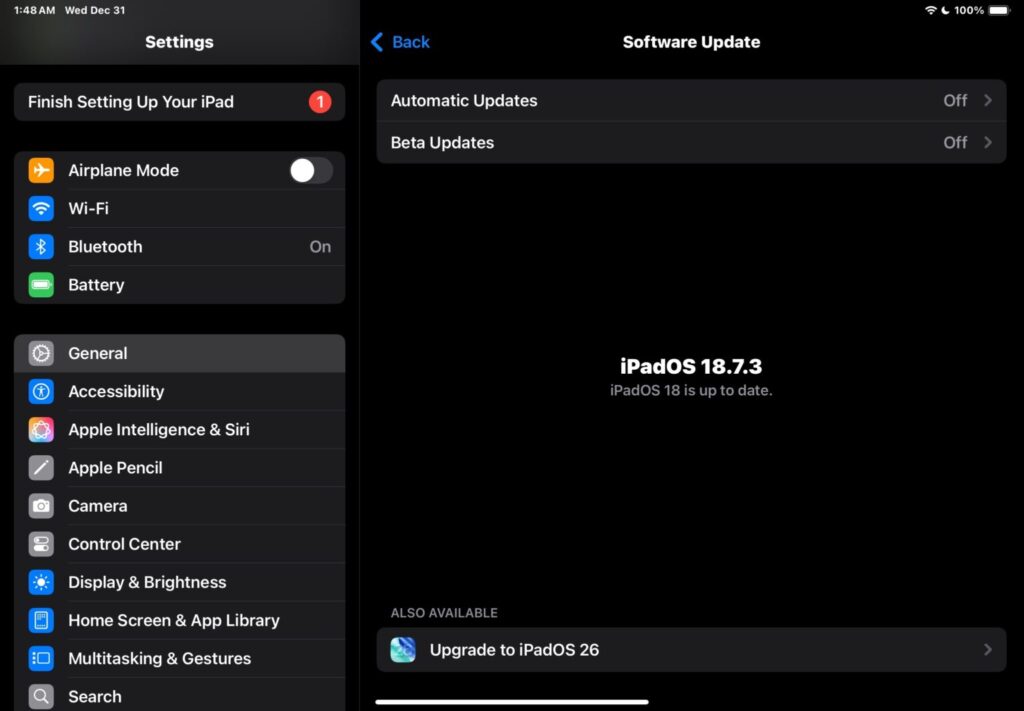
- Tap Upgrade to iPadOS 26, then select Update Now.
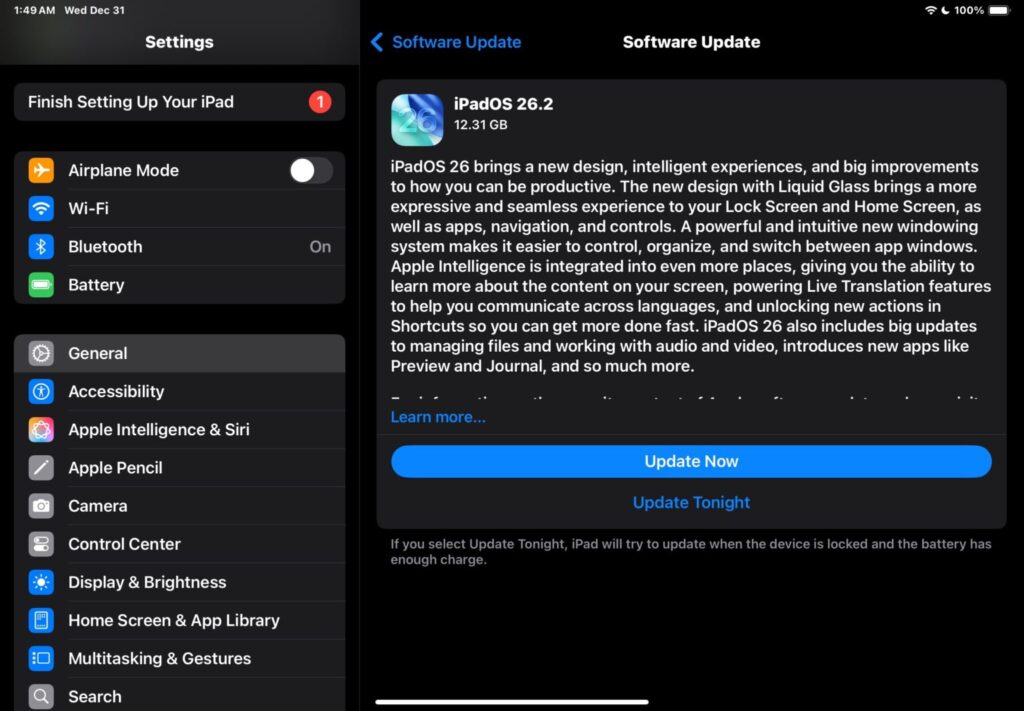
The iPad will download the update, restart, and finish installing automatically. Once complete, your device will boot into iPadOS 26.
Once iPadOS 26 is installed, take some time to explore what’s new. Try the windowed multitasking system, experiment with the menu bar using a mouse or trackpad, customise the Liquid Glass interface, and adjust your Lock Screen to match your style.
- How to Use Parental Controls in iOS 26 and iPadOS 26
- What to do before selling the iPad | Erase and Reset iPad
- Analyst Shares Early Specs for iPhone 18 Pro Lineup and Long-Rumoured Fold Model