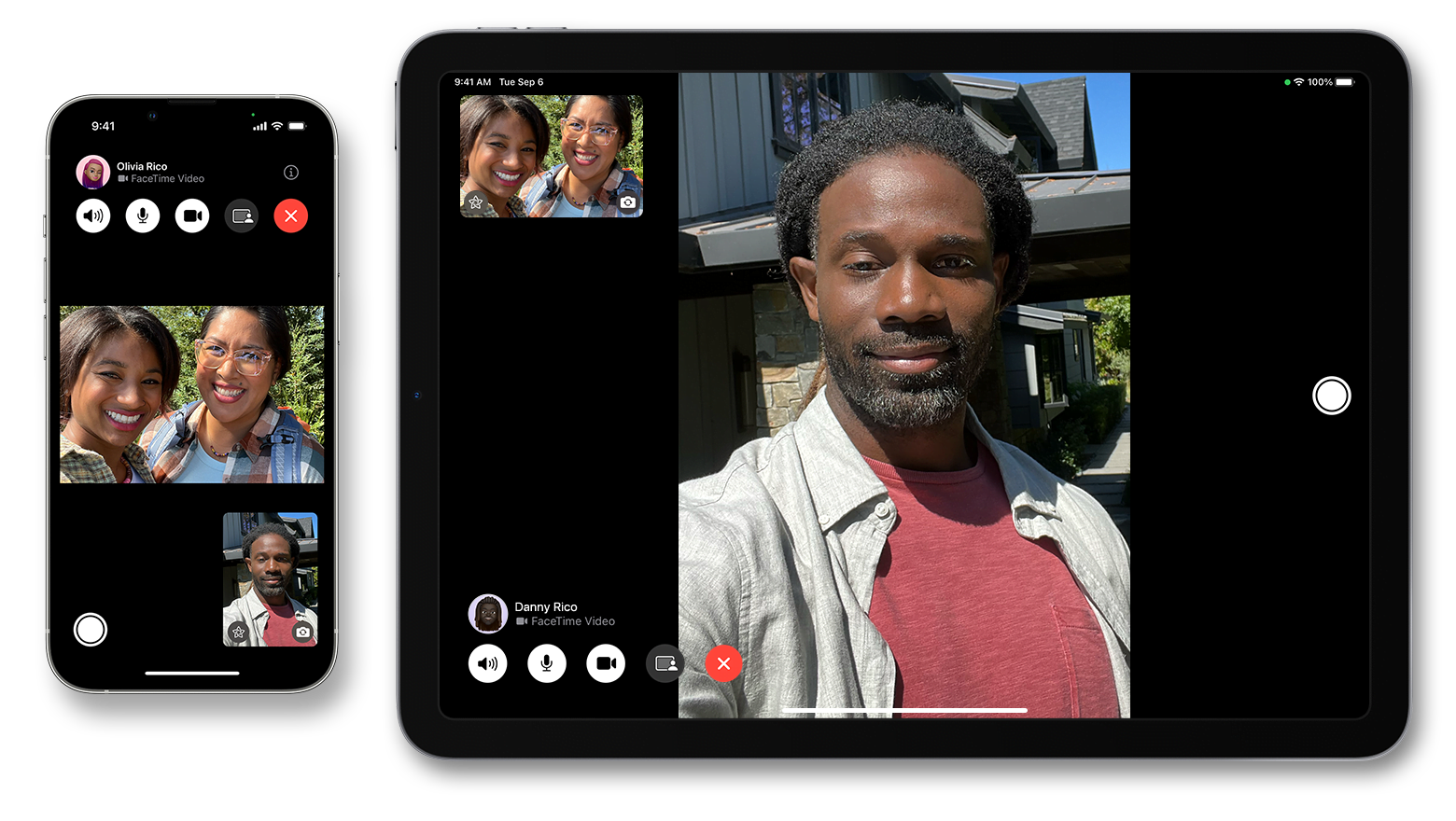
FaceTime plays a crucial role in helping people stay connected to friends, family, and colleagues, regardless of distance. To make video calls feel more natural and engaging, Apple introduced a feature known as Visual Contact.
This tool enhances your FaceTime experience by automatically adjusting the camera view to keep you visible on screen, even when you move.
In this guide, you’ll learn what FaceTime Visual Contact does and how to use it step by step on your iPhone.
What Is FaceTime Visual Contact?
Visual Contact uses your iPhone’s front camera and smart tracking technology to follow your movements during a FaceTime video call. Instead of staying locked in one position, the camera subtly reframes itself to keep you centered. This is especially useful if you shift your position, stand up briefly, or move around the room while talking.
How to Use FaceTime Visual Contact on iPhone
1. Update Your iPhone to iOS 15 or Later
Before using Visual Contact, make sure your device is running iOS 15 or a newer version.
- Go to Settings > General > Software Update
- Download and install the latest update if one is available
The feature will only appear on supported devices with the required software.
2. Start a FaceTime Video Call
- Open the FaceTime app on your iPhone
- Choose a contact or enter a phone number or Apple ID
- Tap Video to begin the FaceTime call
Once the call connects, your camera will turn on as usual.
3. Locate the Visual Contact Control
During the call, look at the on-screen controls. You’ll find the Visual Contact icon, which looks like a small eye, typically located near the bottom-left area of the screen.
4. Turn On Visual Contact
- Tap the Visual Contact icon once
- When enabled, the camera will automatically adjust its framing
From this point on, FaceTime will keep you centered, even if you shift slightly or move around.
5. Move Naturally During the Call
With Visual Contact active, you can move more freely without worrying about stepping out of view. Whether you lean back, stand up briefly, or reposition yourself, the camera will follow and adjust to keep you visible.
6. Turn Off Visual Contact (Optional)
If you prefer a fixed camera view:
- Tap the Visual Contact icon again
- The feature will turn off, and the camera framing will stay still
You can enable or disable it at any time during the call.
7. End the FaceTime Call
When you’re finished chatting:
- Tap the red End Call button at the bottom of the screen
This will close the FaceTime session.
8. Try It Out and Enjoy the Experience
Visual Contact is designed to make FaceTime calls feel smoother and more natural. Take some time to experiment with it during casual conversations to see how it improves comfort and flexibility.
FaceTime Visual Contact makes video calls more engaging by allowing you to move naturally without losing focus on screen. Whether you’re catching up with friends, talking to family, or joining a casual video chat, this feature helps keep you connected without interruption. Enable it once, move freely, and let FaceTime handle the framing for you.