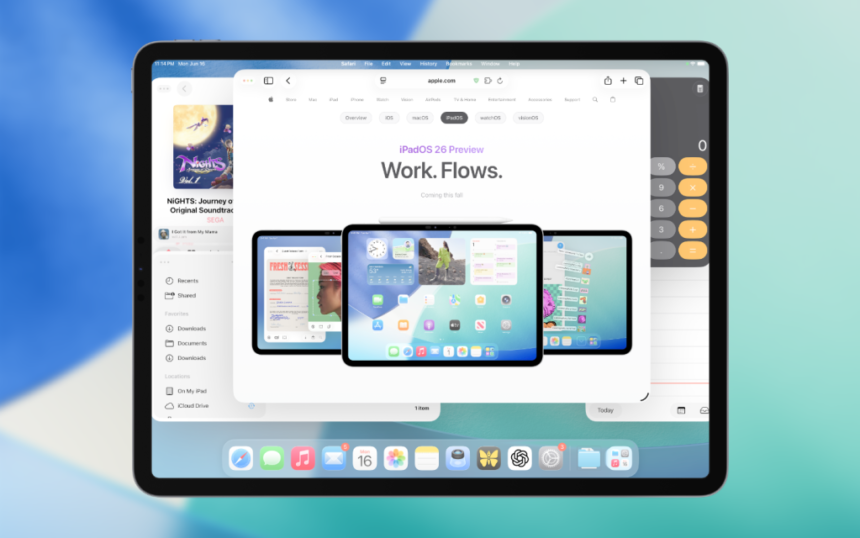
One of the most interesting additions in iPadOS 26 is the new Windowed Apps multitasking mode. This optional feature finally gives iPad users something they’ve been asking for over the years: the ability to use apps in true, free-floating windows, similar to how apps behave on macOS or Windows.
Instead of being locked into rigid split views or single full-screen apps, you can now keep multiple apps and documents open at once, resize them freely, and even let them overlap on the same screen.
If you’ve ever felt that the iPad had the power to replace a laptop but lacked flexible multitasking, this feature may completely change how you use it. Even users who were comfortable with the old system may find that Windowed Apps mode offers a more natural and efficient workflow.
When Windowed Apps Mode Works Best
While Windowed Apps mode is available on supported iPads, it works best with a productivity-focused setup. Using a Magic Keyboard or an external keyboard and mouse makes the experience feel much closer to a traditional computer. Larger iPad models also benefit the most, since the extra screen space makes managing multiple windows far more comfortable.
On smaller iPads, the feature is still usable, but multiple overlapping windows can feel crowded depending on the task.
How to Enable Windowed Apps Mode on iPad
Enabling the feature is quick and straightforward:
- Open the Settings app
- Tap Multitasking & Gestures
- Select Windowed Apps from the available multitasking options.
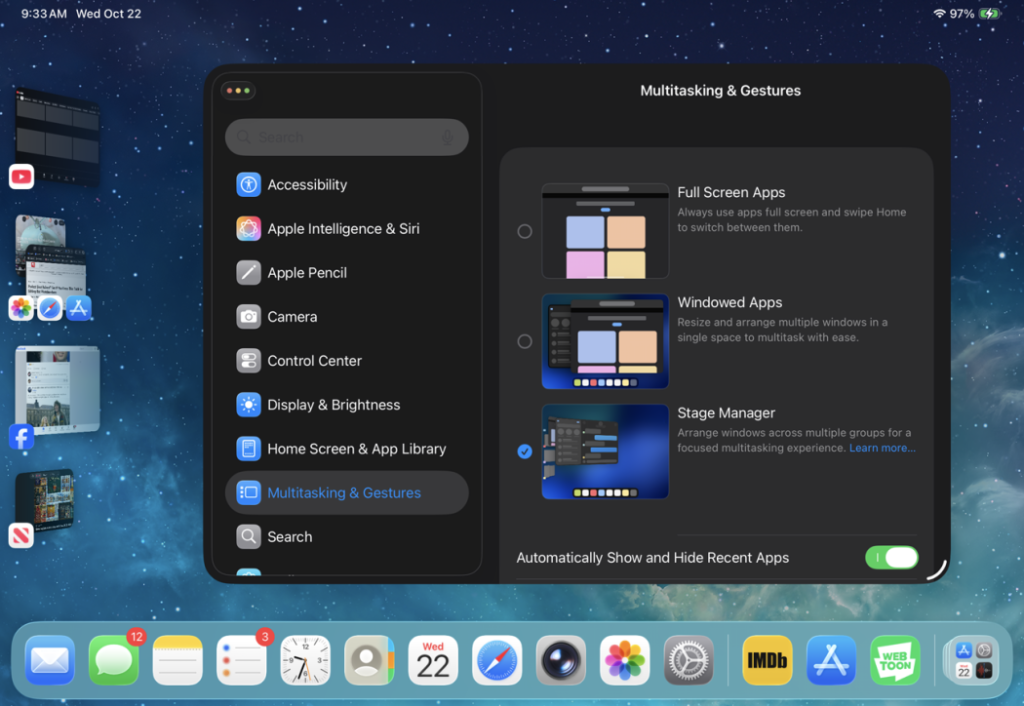
Once enabled, the change applies immediately.
How to Use Windowed Apps Mode
After turning on Windowed Apps mode, any app—including Settings—can be displayed as a movable, resizable window.
Entering Windowed Mode
To place an app into a window, drag inward from one of its corners. The app will shrink into a floating window, similar to Stage Manager, but with more flexibility. In Windowed Apps mode, you can freely stack windows on top of each other instead of being limited to predefined layouts.
Each window includes familiar controls to close, minimise, or maximise the app, which will feel intuitive to anyone used to desktop operating systems.
Slide Over Still Works
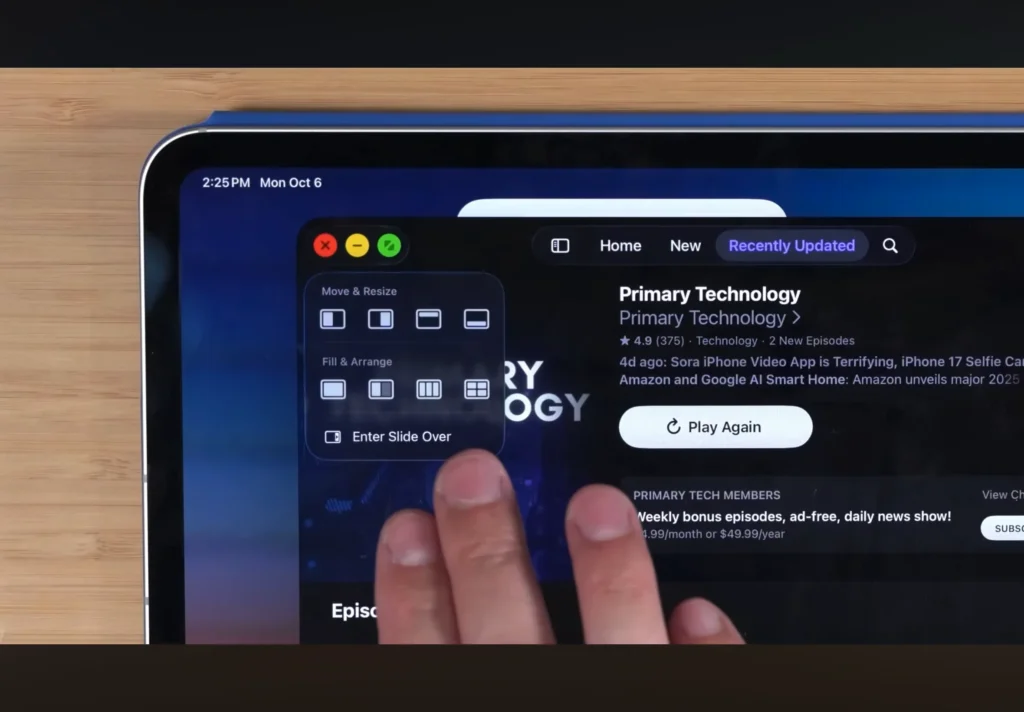
Slide Over remains available alongside Windowed Apps mode. You can still bring in quick-access apps without opening a full window, and it can even be activated by long-pressing the green window button.
If Slide Over isn’t working on your device, make sure you’re running iPadOS 26.2 or later, as earlier versions may not fully support this feature combination.
Using the New Menu Bar
When using a mouse or trackpad, swiping to the top edge of the display reveals a new, app-specific menu bar. This menu works much like the one on macOS, giving you faster access to app functions without cluttering the screen. It’s a small addition that makes multitasking feel far more polished and desktop-like.
Why Windowed Apps Mode Is a Big Deal
For many users, Windowed Apps mode alone makes upgrading to iPadOS 26 worthwhile. The ability to stack windows, combine them with Slide Over, and use app-specific menus dramatically improves multitasking on the iPad. Whether you’re working, studying, or managing multiple tasks at once, these changes make the iPad feel more capable than ever.
What’s your opinion on Windowed Apps mode? Do you prefer it over full-screen apps or Stage Manager, or are you still adjusting to the new workflow?
- Use Parental Controls in iOS 26 and iPadOS 26
- What is Apple Intelligence
- Erase Everything from iPhone
- What is Adaptive Power on iPhone