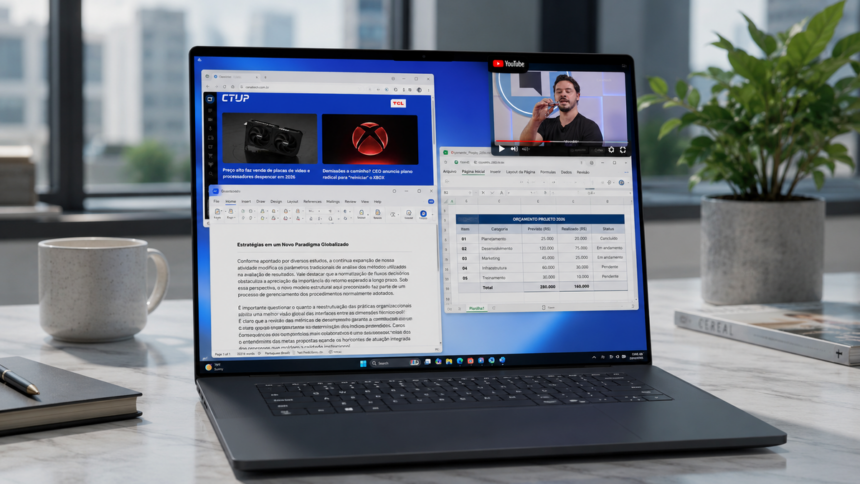
Watching YouTube while replying to emails, working on documents, browsing the web, or researching online has become a common part of multitasking. Fortunately, modern browsers make this easy with a built-in feature called Picture-in-Picture (PiP), also known as a floating video window.
Picture-in-Picture allows you to detach a YouTube video from its browser tab and place it in a small, movable window that stays visible while you use other applications. Most browsers even let you resize and reposition the video anywhere on your screen.
Here’s how to enable YouTube’s floating window mode in Google Chrome, Mozilla Firefox, Microsoft Edge, Vivaldi, and Opera.
Before You Start
Before activating Picture-in-Picture mode:
- Open YouTube in your preferred browser.
- Select a video and start playback.
- Avoid using YouTube’s full-screen mode.
Many browsers only display Picture-in-Picture controls after a video begins playing. Additionally, some browsers may hide the option when a video is in full-screen mode.
How to Watch YouTube in a Floating Window on Google Chrome
Google Chrome includes a built-in Picture-in-Picture feature through its media controls, eliminating the need for extensions or third-party tools.
Steps to Enable Picture-in-Picture in Chrome
- Open YouTube in Google Chrome.
- Play the video you want to watch.
- Locate the Media Control button in the upper-right corner of the browser, next to the address bar.
- Click the Media Control icon.
- Select Enter Picture-in-Picture.
- The video will open in a floating window.
- Drag the window anywhere on your screen.
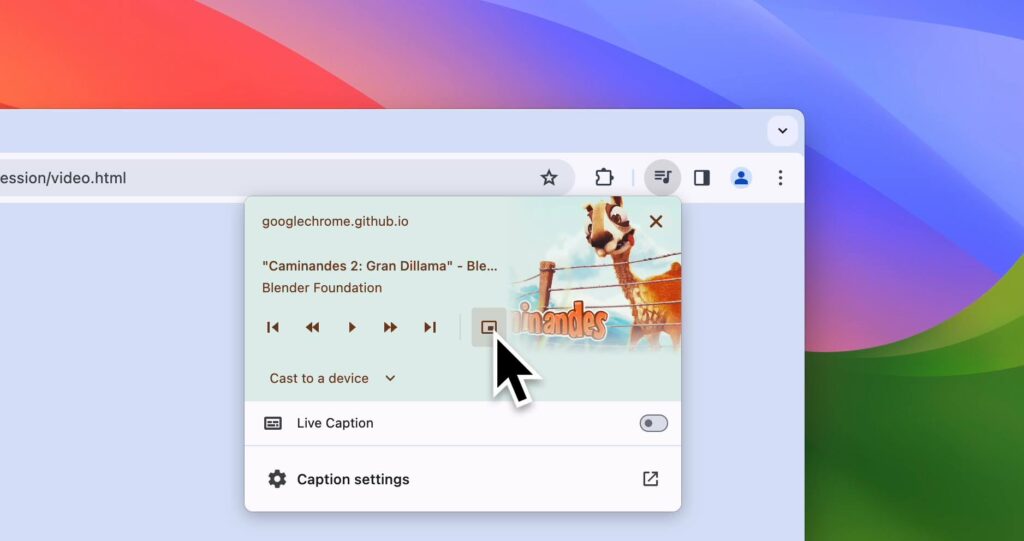
Once enabled, you can switch tabs, browse websites, or use other applications while the video remains visible.
How to Exit Picture-in-Picture
Hover over the floating video window and choose either:
- Return to the original tab
- Close the Picture-in-Picture window
Troubleshooting Chrome
If the Media Control button doesn’t appear:
- Ensure the video is actively playing.
- Update Chrome to the latest version.
- Refresh the YouTube page and try again.
How to Watch YouTube in a Floating Window on Firefox
Mozilla Firefox offers one of the easiest Picture-in-Picture experiences available.
When you hover over a video, Firefox displays a dedicated Picture-in-Picture button directly on the player.
Steps to Enable Picture-in-Picture in Firefox
- Open YouTube in Firefox.
- Start playing a video.
- Hover your mouse over the video player.
- Look for the Picture-in-Picture button.
- Click the button to detach the video.
- Move the floating window wherever you prefer.
- You Can also enable it from Settings.
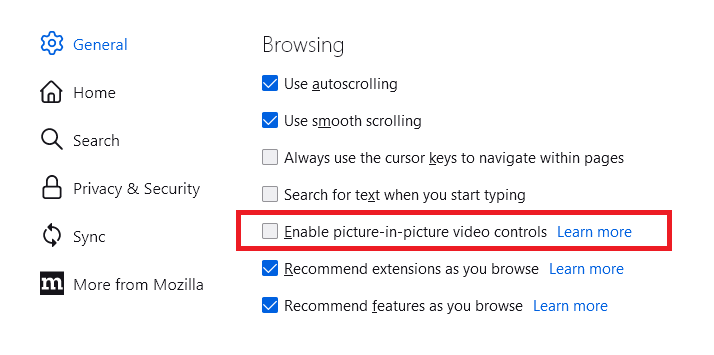
The video will continue playing while remaining on top of other windows.
Firefox Keyboard Shortcuts
You can also launch Picture-in-Picture using keyboard shortcuts:
Windows and Linux:
Ctrl + Shift + ]
macOS:
Command + Shift + Option + ]
Troubleshooting Firefox
If the button doesn’t appear:
- Make sure the video contains audio.
- Avoid very short video clips.
- Exit full-screen mode.
- Try holding Shift while right-clicking on the video to access Firefox’s native context menu.
How to Watch YouTube in a Floating Window on Vivaldi
Vivaldi includes a native feature called Pop-out Video, which allows HTML5 videos to be detached into a floating window.
Steps to Enable Pop-out Video in Vivaldi
- Open YouTube in Vivaldi.
- Play a video.
- Hover your cursor over the player.
- Click the Pop-out Video button that appears near the top of the video.
- The video will open in a separate floating window.
- Move or resize the window as needed.
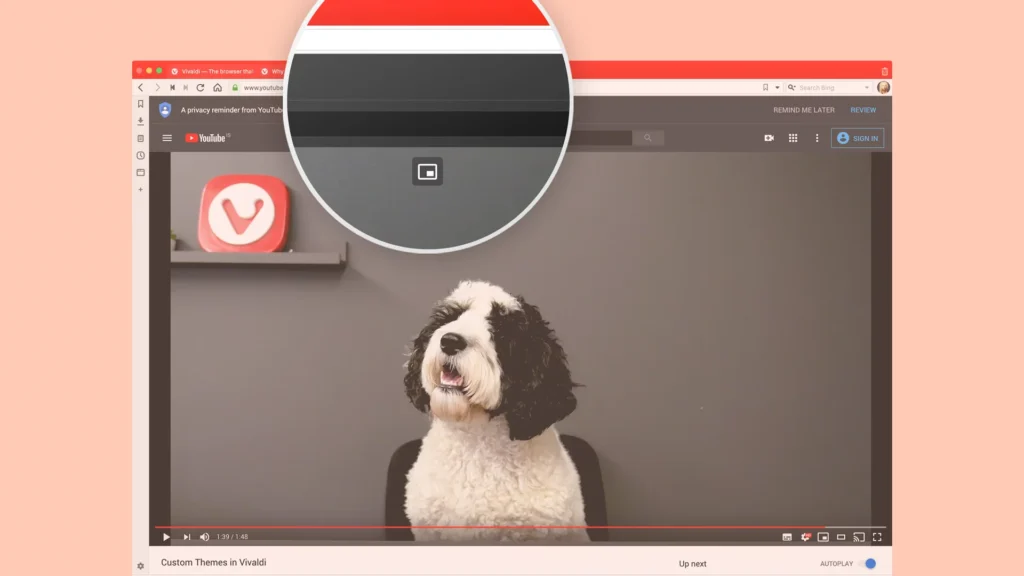
Alternative Method
You can also:
- Right-click the video.
- Select Picture-in-Picture.
On YouTube, you may need to right-click twice because YouTube uses its own context menu.
Additional Vivaldi Controls
The floating player includes controls for:
- Play and pause
- Volume adjustment
- Seeking forward or backward
- Returning to the original tab
- Closing the pop-out window
Troubleshooting Vivaldi
If the Pop-out button is missing:
- Open Settings.
- Go to Web Pages.
- Enable Picture-in-Picture Button on Videos.
How to Watch YouTube in a Floating Window on Microsoft Edge
Microsoft Edge offers a Picture-in-Picture feature similar to Firefox and Vivaldi.
Steps to Enable Picture-in-Picture in Edge
- Open YouTube in Microsoft Edge.
- Play your chosen video.
- Hover over the player.
- Click the Picture-in-Picture button.
- The video will open in a floating window.
- Move and resize the window as desired.
The floating player stays visible while you browse other websites or use desktop applications.
How to Watch YouTube in a Floating Window on Opera
Opera calls its floating video feature Video Popout.
Like other browsers, it allows videos to remain visible while you continue working or browsing.
Steps to Enable Video Popout in Opera
- Open YouTube in Opera.
- Start playing a video.
- Hover over the video player.
- Click the Detach Video button.
- The video will open in a separate floating window.
- Resize or reposition the window as needed.
Troubleshooting Opera
If the feature doesn’t appear:
- Press Alt + P to open Settings.
- Navigate to Features.
- Enable Video Popout.
Why Use YouTube Picture-in-Picture Mode?
Picture-in-Picture is one of the most useful productivity features available in modern browsers. It allows you to:
- Watch tutorials while working
- Follow online classes during note-taking
- Keep up with live streams while browsing
- Listen to podcasts while using other applications
- Monitor sports events without interrupting work
Best of all, most major browsers now include the feature natively, meaning there’s usually no need to install extensions or third-party software.
Watching YouTube in a floating window is a simple way to improve multitasking on your computer. Whether you’re using Chrome, Firefox, Edge, Vivaldi, or Opera, enabling Picture-in-Picture mode takes only a few clicks.
The process is largely the same across browsers: start a video, activate Picture-in-Picture or Pop-out mode, and move the floating window wherever it works best for you. For anyone juggling work, study, and entertainment, it’s a feature that’s hard to live without.