Looking to give your Mac a fresh start and reclaim some much-needed storage space? Over time, files, apps, and temporary data accumulate, gradually slowing down your system and consuming your disk space.
The good news is that you don’t need advanced technical skills to fix this. With a few smart habits-such as moving files to an external drive, removing unused items, and cleaning up system data-you can free up space and keep your computer running smoothly.
Below are five practical and effective ways to increase storage on your Mac, explained step by step.
Practical Tips to Free Up Mac Storage
1. Move Files to the Cloud or an External Drive

One of the easiest ways to clear space is to stop storing everything directly on your Mac. Review your files and keep only what you truly need for daily use.
For documents, photos, or videos that you rarely open, consider uploading them to cloud storage services such as iCloud, Google Drive, or OneDrive. These platforms allow you to access your data at any time while keeping your local storage usage lighter.
Another reliable option is using an external storage device, such as an external hard drive or SSD. This approach not only frees up internal space but also serves as an additional layer of protection, safeguarding your files in the event that something goes wrong with your Mac.
Tip: Organise files by folders before moving them so you can easily find them later.
2. Remove Duplicate and Unnecessary Photos or Videos

Photos and videos are often the biggest storage hogs, especially if you’ve transferred data from old devices or synced multiple backups.
Start by checking for:
- Duplicate photos or videos
- Similar shots saved multiple times
- Low-quality, blurry, or very dark images
- Long videos you no longer need
Deleting these can quickly free up several gigabytes.
If you use iCloud Photos, you can also save space by letting your Mac store lighter versions of your media while keeping full-quality files in the cloud:
How to optimize photo storage on Mac:
- Open the Photos app
- Click Photos in the menu bar
- Select Settings
- Go to the iCloud tab
- Enable Optimize Mac Storage
This allows your Mac to automatically manage storage without deleting your memories.
3. Uninstall Apps You No Longer Use
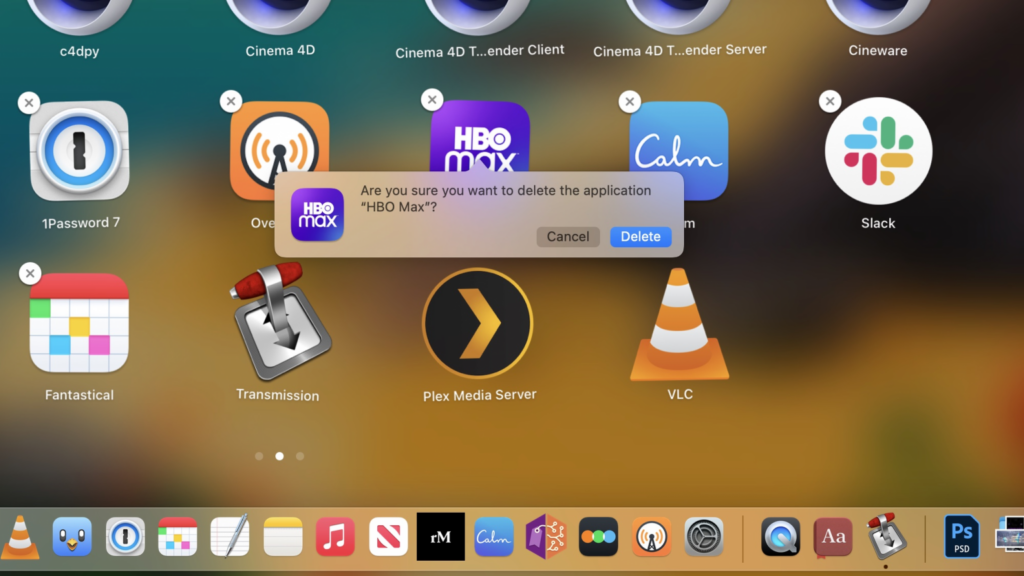
Many apps stay installed long after we stop using them. Some take up significant space, especially professional software, games, or old utilities.
Go through your applications and keep only:
- Apps you use regularly
- Tools needed for work or occasional tasks
Removing unused programs can instantly free up space and reduce background processes.
Steps to delete unused apps:
- Click the Apple menu
- Open Settings
- Go to General
- Select Storage
- Click the i icon next to Applications
- Choose the app you want to remove
- Click Delete and confirm
Take your time reviewing this list-you may be surprised how many apps you no longer need.
4. Clear Browser Cache and Temporary Files
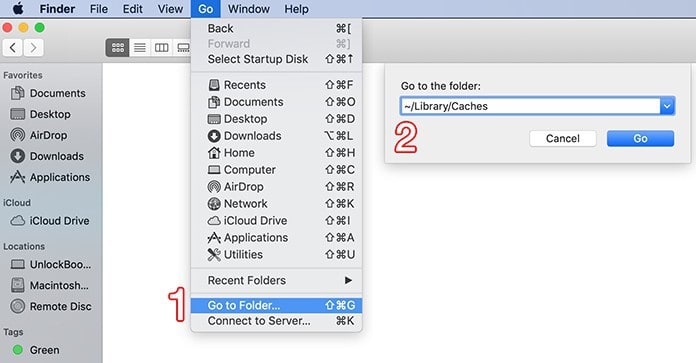
Web browsers store cache files, cookies, and site data to load pages faster. Over time, these temporary files can consume a noticeable amount of storage.
Clearing the cache not only frees up space but can also fix slow-loading websites or browsing errors. This is especially useful when you need just a bit of extra room to install software or download large files.
To clear the cache in Safari:
- Open Safari
- Click Safari in the menu bar
- Select Settings
- Open the Privacy tab
- Click Manage Website Data
- Choose Remove All
Please note that this will also delete cookies and browsing history, so you may need to log in to websites again.
5. Reinstall macOS for a Completely Fresh Start
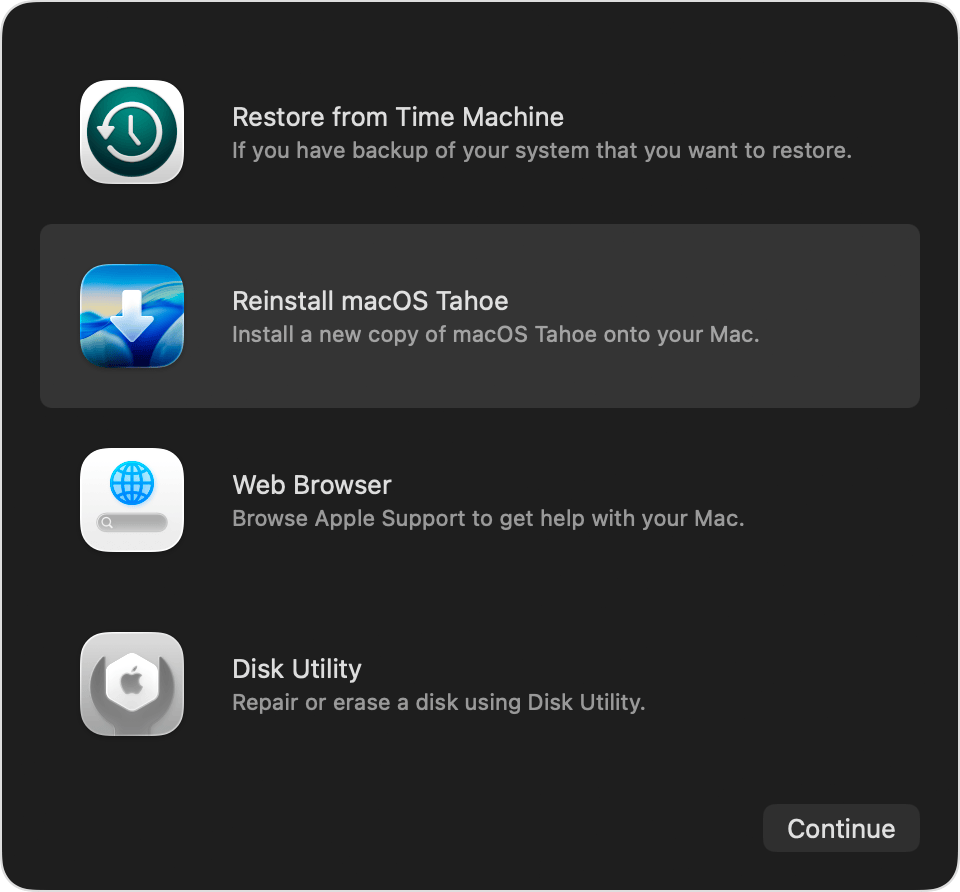
If you want your Mac to feel brand new in 2026, reinstalling macOS is the most thorough solution. This process removes all files, apps, settings, and system clutter, returning your computer to its original state.
Before proceeding, it’s essential to back up all important data using an external drive or cloud storage. Once macOS is reinstalled, deleted data cannot be recovered.
This option is ideal if:
- Your Mac feels slow despite the cleanup
- Storage is constantly full
- You want a clean system with no leftovers
While it takes more time, the result is a clean, fast, and organised Mac.
Freeing up storage on your Mac doesn’t have to be overwhelming. By regularly reviewing your files, removing what you don’t use, and utilising cloud or external storage wisely, you can maintain ample free space and keep your system running efficiently throughout the year.
- View and Manage Your Mac’s Internal Storage
- Best Screen Recorders for Mac
- How to Print Any Document on a Mac
- Clear Recent Files on Mac