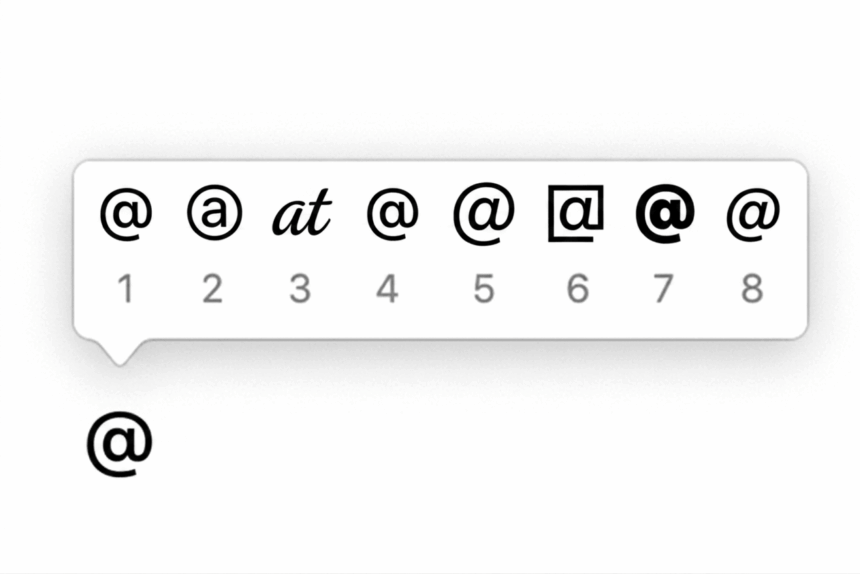
The @ symbol, also known as the at sign, is one of the most commonly used characters in everyday computing. You need it when entering an email address, mentioning someone on social media, filling out login forms, and working with usernames or online accounts.
Typing @ is usually simple, but the keyboard shortcut is not the same on every computer. The key combination depends on your keyboard layout and region. For example, Shift + 2 produces @ on a standard US keyboard, while many UK keyboards use Shift + the apostrophe key.
This can be confusing when the shortcut you normally use suddenly produces a different character. In most cases, the keyboard itself is not faulty. Windows, macOS, or your device may simply be using a different keyboard layout.
In this guide, we’ll explain how to type the @ symbol on Windows, Mac, laptops, Chromebooks, iPhone, and Android, along with what to do when the @ key isn’t working.
What Is the @ Symbol?
The @ symbol is called the at sign. It is represented by the character @ and has several uses in modern computing.
The most familiar use is in email addresses, where it separates the username from the domain name.
For example:
The @ symbol is also commonly used for:
- Social media usernames, such as
@username - Mentions on social platforms
- Login forms and account names
- Programming and scripting
- Online communities and forums
- Some command-line and technical applications
The symbol itself is standardised as Unicode U+0040 and has an ASCII value of 64.
How to Type @ on a US Keyboard
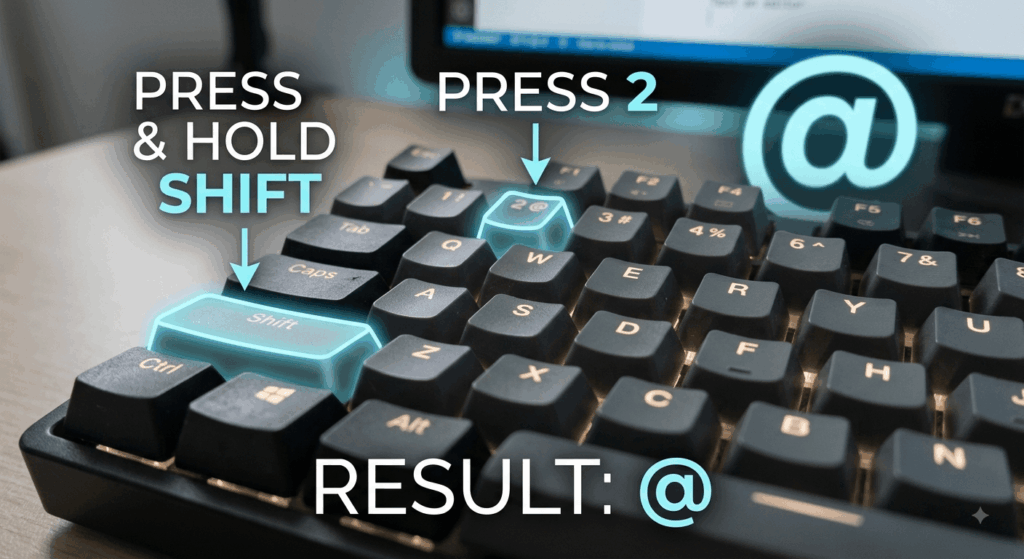
On a standard US keyboard, typing the @ symbol is straightforward. The @ character is usually printed on the same key as the number 2.
- Place the cursor where you want to enter the symbol.
- Hold down Shift.
- Press 2.
- Release the keys.
The result should be:
@
This shortcut works on both Windows and Mac when the computer is configured to use a US keyboard layout.
If Shift + 2 produces another character, your computer is probably using a different keyboard layout.
How to Type @ on a UK Keyboard
UK keyboards arrange some punctuation and symbols differently from US keyboards. As a result, Shift + 2 usually does not produce the @ symbol.
On a common UK keyboard layout, the @ symbol is printed on the apostrophe key near the Enter key.
- Find the key with the @ symbol printed on it.
- Hold Shift.
- Press that key.
- Release both keys.
On the common UK layout, the shortcut is:
Shift + ‘ → @
If this doesn’t produce @, check which keyboard layout is currently selected on your computer. Your physical keyboard and operating system layout need to match.
How to Type @ on European and International Keyboards
Many European and international keyboard layouts use AltGr to provide access to additional symbols.
AltGr is normally the Right Alt key located beside the spacebar.
The exact shortcut varies between keyboard layouts, so there is no single combination that works on every European keyboard.
- Find the key that has the @ symbol printed on it.
- Hold AltGr or the Right Alt key.
- Press the key containing
@. - Release the keys.
Some layouts commonly use:
AltGr + Q → @
Others may use:
AltGr + 2 → @
These combinations are layout-dependent. If neither works, use the @ symbol printed on your physical keyboard as the guide.
How to Type @ on a Windows Laptop
Most Windows laptops use the same keyboard shortcuts as desktop keyboards, but problems can occur when the wrong keyboard layout is selected.
If Shift + 2 doesn’t produce @, don’t immediately assume the keyboard is damaged.
The first thing to check is your keyboard language and layout.
Use the Windows On-Screen Keyboard
Windows includes an On-Screen Keyboard that can show you exactly where the @ symbol is mapped.
Open the On-Screen Keyboard through Windows accessibility settings, then press Shift on the virtual keyboard. The symbols displayed on the keys will change according to the active layout.
This makes it easy to identify the correct key combination.
Check Your Keyboard Layout
If your physical keyboard is designed for a US layout but Windows is configured for a UK or another layout, the symbols produced by certain keys will not match those printed on the keyboard.
You can switch between installed keyboard layouts using the Windows keyboard language controls. On supported Windows systems, Windows + Space can be used to switch between available layouts.
How to Type @ in Microsoft Word, Excel and PowerPoint
Microsoft Word, Excel, and PowerPoint do not normally require a separate shortcut for the @ symbol.
The application uses your operating system’s active keyboard layout.
For example:
- US keyboard: Shift + 2
- UK keyboard: Shift + the key assigned to @
- European layouts: AltGr + the appropriate @ key
If the @ symbol works in one application but not another, check the specific application’s input behaviour. However, if the same shortcut consistently produces the wrong character across multiple programs, the keyboard layout is the first thing you should investigate.
How to Type @ in Google Docs and Google Sheets
Google Docs and Google Sheets also use the keyboard layout configured on your computer. You don’t need a special Google shortcut to type the @ symbol.
Use the appropriate combination for your keyboard:
- US: Shift + 2
- UK: Shift + the key containing @
- European: AltGr + the key containing @
If the shortcut produces the wrong character, check your computer’s active keyboard layout rather than changing settings inside Google Docs or Sheets.
How to Type @ on iPhone
Typing the @ symbol on an iPhone is even simpler because it is available directly from the symbols keyboard.
- Open any app where you can type text.
- Tap the 123 button on the keyboard.
- Find the @ symbol.
- Tap it to insert the character.
The symbol can also appear prominently when entering an email address or other account information.
How to Type @ on Android
The exact appearance of the Android keyboard depends on the device and keyboard app you’re using. Gboard and Samsung Keyboard, for example, can have slightly different layouts.
In most cases, you can access the @ symbol from the numbers and symbols screen.
- Open a text field.
- Tap ?123 or 123.
- Locate the @ symbol.
- Tap
@to insert it.
If you frequently type email addresses, the symbol may also be easy to access directly from the keyboard depending on the app and keyboard configuration.
How to Type @ on a Chromebook
Chromebooks follow the same basic keyboard-layout rules used by other computers.
On a US keyboard, use:
Shift + 2 → @
On a UK or international layout, the shortcut may differ.
If the shortcut suddenly stops working, check the keyboard language configured on the Chromebook. A change in the active input language can cause the physical keys to produce different characters.
Why Is My @ Key Not Working?
When the @ symbol doesn’t appear after pressing the expected shortcut, the problem is often related to the keyboard layout rather than the keyboard hardware.
Here are some common causes.
1. The Keyboard Layout Is Wrong
This is the most common reason.
For example, if you are using a UK keyboard but your computer is configured for the US layout, Shift + 2 will produce @, even though your physical keyboard may show a different character on that key.
Likewise, a US keyboard configured with a UK layout can produce unexpected symbols.
2. You’re Using the Wrong Modifier Key
European keyboard layouts may require AltGr, which is normally the Right Alt key.
If you use the regular Left Alt key instead, the shortcut may not work.
3. Your Keyboard Language Changed
Windows and other operating systems can have multiple keyboard layouts installed. Accidentally switching between them can make familiar shortcuts behave differently.
On Windows, Windows + Space can be used to switch between installed keyboard layouts.
4. One of the Modifier Keys May Be Faulty
If other Shift combinations are also failing, test both Shift keys.
For example, try:
Left Shift + 2
and then:
Right Shift + 2
If one works and the other doesn’t, the issue may be related to the keyboard hardware rather than the layout.
5. Use the On-Screen Keyboard
If you’re unsure which key should produce @, Windows’ On-Screen Keyboard can help identify the active layout.
It is particularly useful when the characters printed on your physical keyboard don’t match what appears on screen.
@ Symbol Quick Reference
| Device or Keyboard | Common Shortcut |
|---|---|
| US Windows keyboard | Shift + 2 |
| US Mac keyboard | Shift + 2 |
| UK keyboard | Shift + the key containing @ |
| Many European keyboards | AltGr + the key containing @ |
| iPhone | 123 → @ |
| Android | ?123 / 123 → @ |
| Chromebook | Depends on keyboard layout |
Remember that international keyboard layouts can differ, so the exact shortcut should always be checked against the layout configured on your device.
@ Symbol Technical Details
For users working with programming, web development, or character encoding, the @ symbol has the following standard values:
- Character: @
- Name: At sign
- Unicode: U+0040
- ASCII: 64
- HTML decimal:
@
In normal writing and web forms, you can simply type @ directly. The HTML entity is mainly useful when working with source code or situations where character encoding needs to be specified explicitly.
Frequently Asked Questions
How do I type @ on a laptop?
On most US keyboards, press Shift + 2. UK and European keyboard layouts may use a different key combination. Look for the @ symbol printed on your keyboard and use the appropriate Shift or AltGr combination.
Why does Shift + 2 not type @?
Your computer is probably using a keyboard layout different from the physical keyboard. Check the active keyboard language and layout, then switch to the correct one.
How do I type @ on a UK keyboard?
On a common UK keyboard layout, press Shift + the apostrophe key, which is usually located near the Enter key.
What is AltGr?
AltGr is generally the Right Alt key on European keyboards. It provides access to additional characters and symbols that aren’t available through the standard Shift combinations.
How do I type @ on an iPhone?
Tap 123 on the iPhone keyboard and then tap @.
How do I type @ on Android?
Tap ?123 or 123 to switch to the symbols keyboard, then select @.
What is the Unicode code for @?
The @ symbol is U+0040 in Unicode and has an ASCII decimal value of 64.
Typing the @ symbol usually involves using the correct keyboard shortcut for your layout. On a standard US keyboard, the quickest method is Shift + 2, while UK and many European keyboards use different combinations.
If the expected shortcut produces another character, check your keyboard layout or input language first. On Windows, you can also use the On-Screen Keyboard to see exactly where the @ symbol is mapped.
For phones, the process is even easier. Open the numbers and symbols keyboard and tap @.
Once your keyboard layout matches your physical keyboard, typing the at sign should work normally across email, documents, browsers, social media, and other applications.