
Microsoft has released KB5132061, its November 2026 cumulative security update for Windows 11. Distributed through Windows Update, the release includes security patches, stability improvements, and fixes for several problems introduced by previous updates.
Although it does not bring major visual changes, the update is particularly relevant for users experiencing problems with USB audio devices, Remote Desktop connections, and network printers managed by organizations.
The release also continues Microsoft’s Secure Boot certificate renewal process and delivers updated AI components for compatible Copilot+ PCs.
Windows 11 KB5132061: Supported versions and build numbers
KB5132061 began rolling out on November 10, 2026, and is available for Windows 11 versions 26H2, 25H2, and supported Enterprise and Education editions of 24H2.
The resulting OS build numbers are:
| Windows 11 version | Updated build |
|---|---|
| Windows 11 26H2 | 26300.9974 |
| Windows 11 25H2 | 26200.9974 |
| Windows 11 24H2 Enterprise and Education | 26100.9974 |
As a cumulative update, KB5132061 also includes earlier fixes, including improvements delivered through the optional KB5127936 preview update for versions 25H2 and 26H2.
One important detail concerns Windows 11 24H2 Home and Pro. These editions reached the end of their support period on October 13, 2026, meaning they no longer receive regular security updates. Users running these editions should move to a supported Windows 11 version to continue receiving protection.
Microsoft fixes USB audio problems
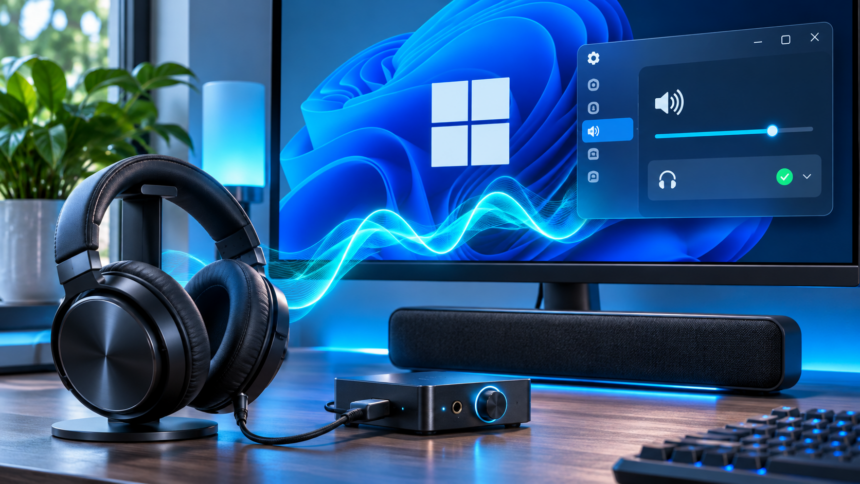
One of the most useful changes addresses problems affecting certain USB audio devices that follow the USB Audio Class 1.0 standard.
Following some earlier Windows updates, affected devices could stop working correctly and display error code 10 in Device Manager, indicating that Windows could not start the device.
Users could experience symptoms such as:
- No sound from the connected audio device.
- Audio drivers failing to initialize.
- Unresponsive volume controls.
- Problems accessing certain sound settings.
KB5132061 includes a correction for this issue, making it particularly relevant for anyone who encountered USB audio problems after installing recent Windows updates.
Microsoft has also addressed a separate audio issue affecting Windows 11 24H2 Enterprise and Education. In certain configurations involving AMD graphics cards, sound playback through HDMI or DisplayPort could fail.
This is a separate problem from the USB Audio Class 1.0 issue and affects a different combination of hardware and Windows editions.
Printer and Remote Desktop problems are also fixed
The November update includes several corrections aimed primarily at business and enterprise environments.
Active Directory printer installation issue
Microsoft has fixed a problem introduced by the October 2026 update that prevented users from adding certain printers published through Active Directory.
When attempting to install an affected printer through Settings > Bluetooth & devices > Printers & scanners, Windows could display error 87, suggesting that an incorrect parameter had been supplied.
The issue primarily affected the addition of new organization-managed printers rather than the normal operation of printers that were already installed.
Remote Desktop connection errors
Another correction concerns Remote Desktop Protocol (RDP), which allows users to connect to computers remotely.
Following the optional October update, some users encountered connection failures associated with inconsistencies involving security certificates.
KB5132061 addresses this behavior, which should be welcome news for employees and administrators who rely on Remote Desktop to access workplace systems.
Windows receives additional security improvements
Beyond the compatibility fixes, Microsoft is strengthening several security mechanisms.
One area receiving attention is NTLM authentication, which remains in use across many Windows environments. The update allows clients to offer NTLM message signing by default for non-anonymous connections, helping reduce exposure to certain man-in-the-middle attacks.
Microsoft is also strengthening digital signature validation for PowerShell scripts. Scripts containing incorrectly encoded UTF-8 data may need to be reviewed and signed again to comply with the updated validation requirements.
These changes are unlikely to affect most home users directly, but organizations relying on older authentication systems or legacy PowerShell scripts should check for potential compatibility issues.
Secure Boot certificates continue to be updated
KB5132061 also advances Microsoft’s ongoing Secure Boot certificate renewal process.
Some older Secure Boot certificates began reaching their expiration dates in 2026. Microsoft is gradually replacing them with newer certificates and expanding the set of devices automatically eligible to receive the updated credentials.
However, the new certificates will not arrive on every computer immediately. Their distribution remains gradual, and Microsoft says systems waiting for the renewal can continue to start normally and receive regular Windows updates.
The update also delivers AI components at version 1.2610.1063.0 for compatible Copilot+ PCs. These components support capabilities such as image search, content extraction, and semantic analysis. Their inclusion does not represent the launch of a completely new AI feature.
How to install Windows 11 KB5132061
The cumulative update can be installed through Windows Update. To check whether it is available on your computer:
- Open Settings.
- Select Windows Update.
- Click Check for updates.
- Look for cumulative update KB5132061.
- Install the update and restart your computer if prompted.
You can check your currently installed Windows version and build by pressing Windows + R, entering winver, and confirming.
Most users should not need to download the update manually from the Microsoft Update Catalog.
Are there any known issues with KB5132061?
At the time of its release, Microsoft had not listed any known issues associated with KB5132061 in its update documentation.
That is encouraging, particularly given the audio and Remote Desktop problems reported following previous releases. However, the absence of documented issues does not guarantee that every hardware and software configuration will behave identically after installation.
Microsoft has also indicated that it will skip the usual optional preview update during the second half of December 2026. Regular security updates will continue according to the normal schedule.
Should you install the November 2026 update?
Yes, installing KB5132061 is recommended for compatible Windows 11 systems. While it does not introduce a major interface redesign or headline feature, its collection of security improvements and practical bug fixes makes it an important maintenance release.
Users with USB audio devices, organization-managed printers, or Remote Desktop connections have particular reasons to install it. The Secure Boot certificate work and NTLM improvements also make the update relevant from a security perspective.
As always, save open documents before installing and allow enough time for the required restart. Business users should follow their organization’s update-testing and deployment procedures.
Finally, anyone still running Windows 11 24H2 Home or Pro should prioritize moving to a supported release. Keeping Windows up to date remains one of the simplest ways to reduce exposure to newly discovered security vulnerabilities.