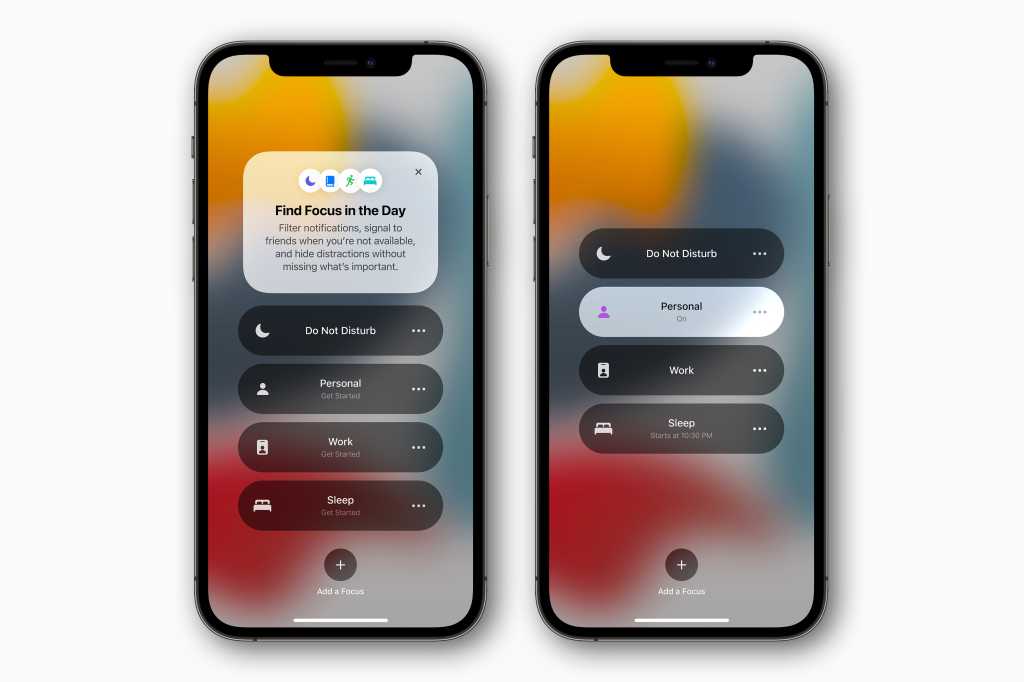
On Apple devices, Focus mode is turned on with syncing enabled by default. This means that if you activate Focus on one device—such as a Mac running macOS Monterey or later—it automatically carries over to every other device linked to the same Apple ID. While this is meant to create a smooth, unified experience, it can catch people off guard if they don’t realise it’s happening.
The biggest downside usually shows up with notifications. When Focus mode is active, alerts can be silenced or filtered without any obvious warning. As a result, messages, calls, or time-sensitive notifications might never reach you when you expect them to. This often happens because Focus mode turns on automatically based on a schedule, location, or app usage, or simply because it was enabled on another device and synced in the background.
Because of this, it’s worth staying aware of how Focus mode is behaving across your devices. The feature is undeniably useful when you want fewer distractions, but it can also quietly block important alerts if you’re not paying attention. If timely notifications matter to you, it’s a good habit to occasionally check whether Focus mode is active on the device you’re using.
Fortunately, Apple gives you control over this behaviour. You can adjust Focus settings to stop it from syncing across all devices, or limit syncing to only the ones you choose. Tweaking these preferences lets you enjoy the benefits of Focus mode without accidentally cutting yourself off from important communication at the worst possible time.
How to Disable Focus Sync on iPhone and Mac
If you prefer to have Focus mode enabled only on a specific device and prevent automatic syncing with other devices like your Mac, iPad, or Apple Watch, there are two methods you can use. You can either adjust the configuration settings on your iPhone or modify the settings on your Mac. Let’s explore both options:
1. On iPhone
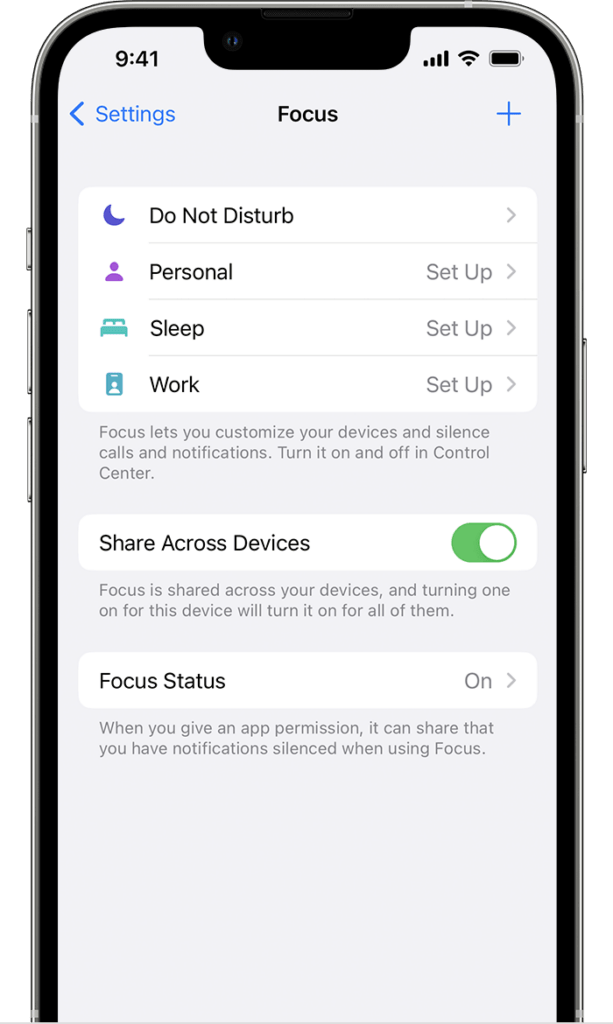
Open the Settings app on your iPhone, then tap “Focus.” Then disable the “Sync Across Devices” option. Tap “OK” to confirm your choice and prevent sharing the Focus state.
2. On Mac
Click on the System Preferences app on Mac, then go to “Notifications & Focus” and select the “Focus” tab. Finally, disable the “Synchronise Across Devices” option in the lower-left corner of the screen.
Ready! With just a few steps, you can prevent one device from receiving the Focus state of the other. Remember to manually activate it on your Mac, iPhone, iPad, or Apple Watch.
- How to Test Decibels on an iPhone
- Memoji iPhone PNG
- How to Set Face ID for Instagram on iPhone
- How to Erase Everything from iPhone