

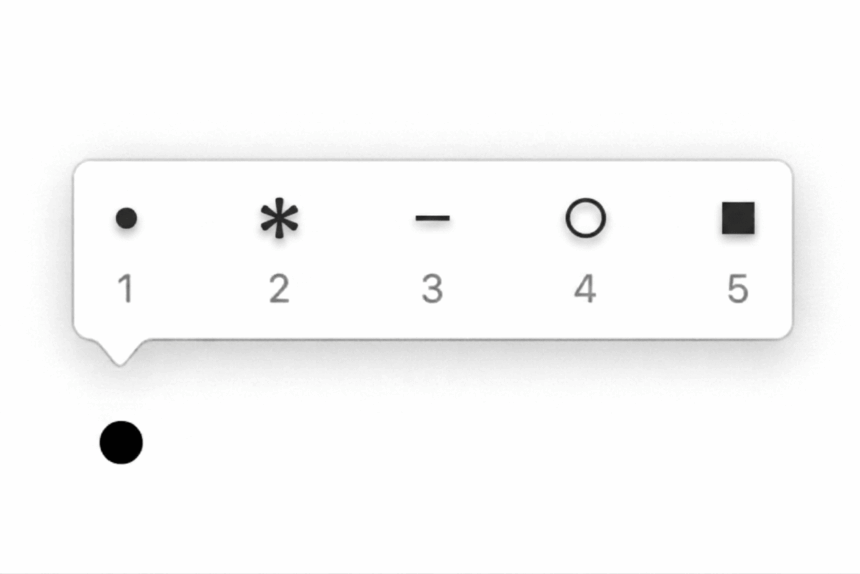
A bullet point (•) is a small dot or symbol used to organize information into a list. You will see bullet points in documents, presentations, notes, emails, websites, and many other types of content.
For example:
- First item
- Second item
- Third item
If you need to type a bullet point but are not sure which keyboard shortcut to use, this guide covers the quickest methods for Windows and Mac. You will also learn how to create proper bulleted lists in Microsoft Word and Google Docs, copy different bullet styles, and troubleshoot common problems with Alt codes.
How to Type a Bullet Point
The fastest methods are:
- Mac: Press Option (⌥) + 8 to type •
- Windows: Hold Alt, type 0149 on the numeric keypad, then release Alt
- Windows alternative: Hold Alt and type 7 on the numeric keypad. This produces • on many Windows PCs.
Bullet Point Symbol
•
If you only need to copy the symbol, you can use the one above and paste it into your document, message, website, or application.
Note: Windows Alt codes require the numeric keypad on most keyboards. The number row above the letters usually will not work.
Copy and Paste Bullet Point Symbols
If you need a bullet quickly, copying and pasting is often easier than remembering a keyboard shortcut.
Common Bullet Symbols
• ● ◦ ○ ▪ ▫ ‣ · ⦿ ■ □
Different symbols work well for different types of lists.
For example:
• Standard bullet
● Large filled circle
◦ Small open circle
○ Open circle
▪ Small square
▫ Open square
‣ Triangular bullet
· Middle dot
How to Copy a Bullet Point
On Windows:
- Highlight the bullet symbol.
- Press Ctrl + C.
- Place the cursor where you want the bullet.
- Press Ctrl + V.
On Mac:
- Highlight the bullet.
- Press Command + C.
- Place the cursor where you want the symbol.
- Press Command + V.
How to Type a Bullet Point on Windows
Windows provides several ways to enter the bullet symbol.
1. Use the Alt Code
The most common Windows shortcut for the standard bullet symbol is Alt + 0149.
Follow these steps:
- Place the cursor where you want the bullet.
- Make sure Num Lock is enabled.
- Hold down the Alt key.
- Type 0149 using the numeric keypad.
- Release Alt.
You should see:
•
2. Use Alt + 7
On many Windows PCs, you can also type the bullet using:
Alt + 7
To do this:
- Turn on Num Lock.
- Hold Alt.
- Type 7 on the numeric keypad.
- Release Alt.
The result should be:
•
If Alt + 7 produces a different character on your computer, use Alt + 0149 instead.
How to Type a Bullet Point on a Mac
Mac users have a simple keyboard shortcut for the standard bullet.
Use Option + 8
Press:
Option (⌥) + 8
This produces:
•
The shortcut works in many common Mac applications, including text editors, documents, email applications, and web forms.
If you are creating a list rather than inserting a single bullet character, using the application’s built-in list feature is usually a better option.
How to Create a Bullet List in Microsoft Word
If you are writing a document with multiple list items, you generally do not need to type the bullet character manually. Microsoft Word has a built-in bullet list feature.
Create a Bulleted List
- Open your Word document.
- Place the cursor where you want the list.
- Go to the Home tab.
- Find the Paragraph section.
- Click the Bullets button.
- Start typing your first item.
- Press Enter to create the next bullet.
For example:
- First item
- Second item
- Third item
Word automatically creates and aligns each bullet for you.
Choose a Different Bullet Style
You can change the appearance of your list by clicking the arrow next to the Bullets button.
Depending on your Word version, you can choose styles such as:
- • Filled circle
- ○ Open circle
- ▪ Square
- Other predefined bullet designs
Using Word’s list feature is preferable to manually typing a bullet before every line because Word automatically handles indentation, spacing, and numbering.
How to Create a Bullet List in Google Docs
Google Docs also has a built-in tool for creating bulleted lists.
- Open your Google Docs document.
- Place the cursor where you want the list.
- Click the Bulleted list button in the toolbar.
- Type your first item.
- Press Enter to create the next bullet.
You can also use the menu:
Format → Bullets & numbering → Bulleted list
Google Docs will automatically create and format the list.
Change the Bullet Style
Google Docs allows you to choose different bullet designs. Select the list and use the bullet list options to choose another style.
This is better than manually inserting • when you have several items because the list remains properly formatted if you add, remove, or rearrange items.
How to Insert a Bullet Point in Microsoft Excel
You can insert a bullet directly into an Excel cell.
Using the Alt Code on Windows
- Double-click the cell or select the formula bar.
- Place the cursor where you want the bullet.
- Hold Alt.
- Type 0149 on the numeric keypad.
- Release Alt.
The bullet • will be inserted into the cell.
You can also copy the bullet from another cell and paste it where needed.
Create Multiple Bullets in One Cell
If you want several bullet points inside one Excel cell, you can insert a bullet followed by your text and then add a line break between items.
For example:
• First item
• Second item
• Third item
The exact keyboard shortcut for inserting a line break can vary depending on your Excel version and operating system.
How to Insert a Bullet Point in PowerPoint
PowerPoint is designed to work with bulleted lists, so the built-in bullet feature is usually the easiest choice.
- Click inside a text box or placeholder.
- Go to the Home tab.
- Select the Bullets button.
- Type your list.
- Press Enter to create another bullet.
You can also use Insert → Symbol when you need a single bullet character rather than a formatted list.
How to Insert a Bullet Point Using the Symbol Menu
If you cannot use a keyboard shortcut, you can find the bullet symbol through a symbol picker.
Microsoft Office
In applications such as Word, Excel, and PowerPoint:
- Place the cursor where you want the symbol.
- Open the Insert tab.
- Select Symbol.
- Browse the available symbols.
- Find •.
- Select it.
- Click Insert.
The exact menu layout can vary between Microsoft Office versions.
Bullet Point vs Bulleted List
A bullet point is the actual character or symbol, such as:
•
A bulleted list is a formatted list where each item is automatically preceded by a bullet.
For example:
Bullet character:
• This is a single bullet symbol.
Bulleted list:
- First item
- Second item
- Third item
If you are writing a long list in Word or Google Docs, use the application’s bulleted list feature instead of manually typing the bullet before every item.
Different Bullet Point Styles
There is more than one symbol you can use as a bullet.
Here are some common choices:
| Symbol | Style |
|---|---|
| • | Standard filled bullet |
| ● | Large filled circle |
| ◦ | Small open bullet |
| ○ | Open circle |
| ▪ | Small square |
| ▫ | Open square |
| ‣ | Triangular bullet |
| ■ | Large square |
| □ | Open square |
| · | Middle dot |
The best choice depends on the document and the type of list you are creating.
Why Is My Alt Code Not Working?
If Alt + 0149 does not produce a bullet point, check the following.
Make Sure Num Lock Is On
The numeric keypad may not work correctly with Alt codes when Num Lock is disabled.
Turn on Num Lock and try again.
Use the Numeric Keypad
Alt codes generally require the numeric keypad. Typing 0149 using the number row above the letters may not produce the bullet.
Try Alt + 7
If Alt + 0149 does not work, try:
Alt + 7
This produces a bullet on many Windows systems.
Use Copy and Paste
If keyboard shortcuts continue to cause problems, copy this symbol:
•
Then paste it wherever you need it.
Use a Built-In List Tool
If your goal is to create a list in Word, Google Docs, or PowerPoint, use the application’s Bullets feature instead of inserting individual bullet characters.
What is the keyboard shortcut for a bullet point on Windows?
The most common Windows Alt code is Alt + 0149. Hold Alt and enter 0149 using the numeric keypad.
What is the keyboard shortcut for a bullet point on Mac?
Press Option + 8 to type the standard bullet symbol •.
What is the bullet point symbol?
The most common bullet point symbol is:
•
Can I copy and paste a bullet point?
Yes. You can copy this bullet and paste it wherever you need it:
•
Why does Alt + 0149 not work on my laptop?
Many laptops do not have a dedicated numeric keypad. In that case, the Alt code may not work as expected. You can use copy and paste, your application’s symbol picker, or a built-in bulleted list feature instead.
Is a bullet point the same as a bulleted list?
No. • is a bullet character. A bulleted list is a formatted list where each item is automatically preceded by a bullet.
How do I make different bullet styles?
In applications such as Word, Google Docs, and PowerPoint, use the application’s bullet list settings to choose different symbols and styles. You can also manually insert characters such as ●, ◦, ○, ▪, or ▫.





 is a small dot or symbol used to organize information into a list. You will see bullet points in documents, presentations,)