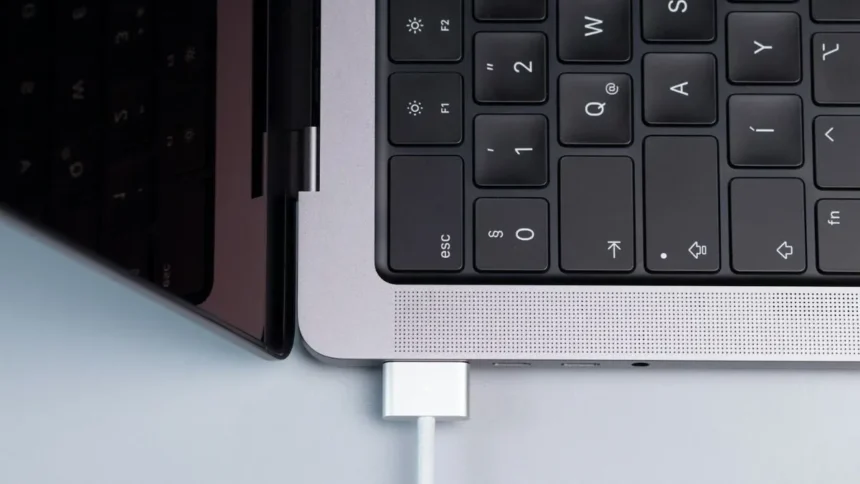
If your MacBook Air, MacBook Pro, or MacBook Neo stops charging at 80%, there is usually no reason to panic. In most cases, your Mac is not experiencing a battery problem. macOS is deliberately limiting the charge as part of Apple’s battery management features.
You may notice the issue when leaving your MacBook connected to power for several hours. Even after charging overnight, the battery can remain at 80% instead of reaching 100%.
This behavior is designed to reduce battery wear over time. macOS can learn your charging habits and delay charging beyond 80% until it expects you will need the extra battery capacity.
If you need a full charge immediately, you can manually tell your MacBook to charge to 100%. You can also change or disable the battery charging settings if you prefer to manage charging yourself.
Why Is My MacBook Stuck at 80%?
The most common reason is Optimized Battery Charging.
This feature is designed to reduce battery aging by limiting the amount of time your MacBook spends at a full charge. Lithium-ion batteries can experience additional wear when they remain at or near 100% for extended periods.
When Optimized Battery Charging is active, macOS can pause charging around 80%. The system then uses your charging routine to determine when it should continue charging.
For example, suppose you normally plug your MacBook in before going to bed and unplug it at 8 a.m. Instead of immediately charging to 100%, macOS may keep the battery around 80% for most of the night and finish charging shortly before you usually disconnect the charger.
This means a MacBook that appears to be “stuck” at 80% may actually be working exactly as intended.
How to Charge Your MacBook to 100% Right Now
If you need the maximum battery capacity before leaving home, you do not have to wait for macOS to decide when to complete the charge.
You can manually override Optimized Battery Charging.
- Connect your MacBook to its charger.
- Click the Battery icon in the macOS menu bar.
- Look for the charging information.
- Select Charge to Full Now.
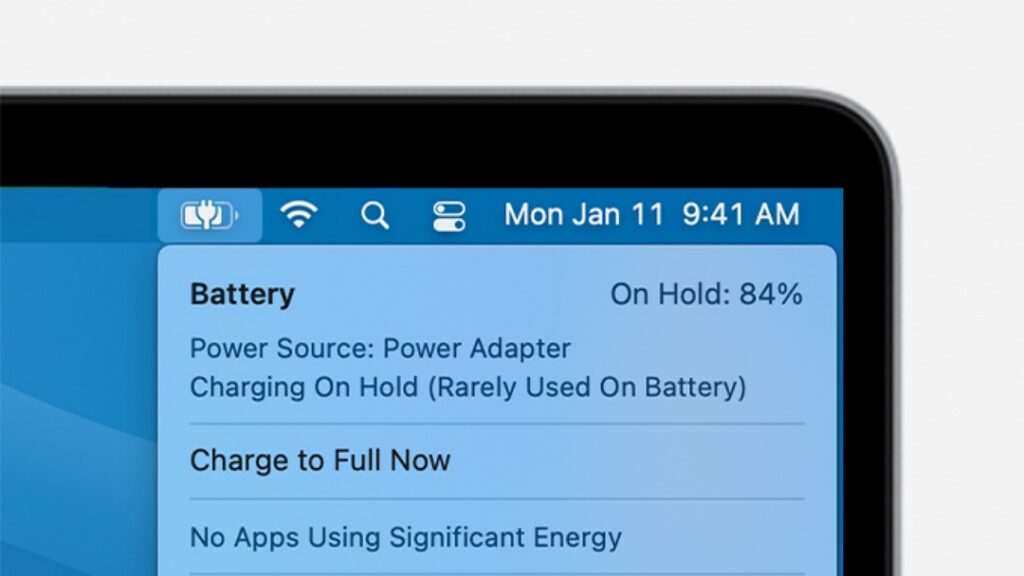
Your MacBook should then continue charging toward 100%.
This option is useful when your normal schedule changes. For example, if you usually work near a power outlet but are heading out for several hours, charging to 100% manually gives you additional battery capacity when you need it.
How to Turn Off Optimized Battery Charging
If you do not want macOS to manage your charging routine, you can change the battery settings.
- Open the Apple menu.
- Select System Settings.
- Click Battery.
- Find the charging settings and select the information button next to Charging.
- Turn off Optimized Battery Charging if the option is available.
Depending on your MacBook model and macOS version, the available battery controls can differ. Some newer Macs also provide a charge limit that lets you choose a maximum percentage rather than always charging to 100%.
Before disabling battery management, keep in mind that these features exist to reduce long-term battery wear. If you normally keep your MacBook plugged in for long periods, allowing macOS to manage charging can be beneficial.
Should You Keep Optimized Battery Charging Turned On?
For most MacBook owners, there is little reason to disable it.
If your Mac spends a lot of time connected to a charger, avoiding a constant 100% charge can help reduce battery aging. Optimized Battery Charging is particularly useful for people who have a predictable daily charging routine.
You can still charge the battery fully whenever you need to. The Charge to Full Now option gives you a way to temporarily override the charging limit without permanently changing your settings.
If your schedule changes frequently, you may find yourself using this option more often because macOS may not always predict when you will disconnect the charger.
What If My MacBook Still Won’t Charge Past 80%?
Optimized Battery Charging is one of the most common explanations, but it is not the only possibility.
If your MacBook consistently refuses to charge beyond 80%, even after manually selecting Charge to Full Now, check the following.
Check the Battery Health
Battery capacity naturally decreases as a lithium-ion battery ages.
You can check the condition of your MacBook battery through:
Apple menu → System Settings → Battery → Battery Health
Look for the battery condition and maximum capacity information provided by macOS.
If the battery is significantly degraded, the MacBook may not behave like it did when it was new.
Check the MacBook’s Temperature
Heat can affect charging behavior and battery performance.
If your MacBook becomes unusually hot while charging, move it to a cooler, well-ventilated location and allow it to cool down. Avoid using the MacBook on surfaces that block its ventilation.
Check Your Charger and Cable
A damaged cable, an incompatible power adapter, a loose connection, or an insufficient power source can also cause charging problems.
Make sure the charger is properly connected and that the MacBook recognizes the power source.
If possible, try another compatible charger or cable to determine whether the charging accessory is causing the problem.
Restart Your MacBook
If the charging status appears incorrect, a simple restart can sometimes resolve temporary macOS issues.
Save your work, restart the MacBook, reconnect the charger, and check the battery status again.
How to Check MacBook Battery Health
You can check your battery condition directly from macOS.
- Open the Apple menu.
- Select System Settings.
- Click Battery.
- Select Battery Health.
The exact options and wording may vary depending on your MacBook model and macOS version.
Battery health is worth checking if your MacBook has been used heavily for several years, frequently runs hot, or has noticeably shorter battery life than it once did.
Is Charging a MacBook to 100% Bad?
No. Charging your MacBook to 100% is not inherently bad for the battery.
The concern is mainly about keeping a lithium-ion battery at a very high charge level for extended periods. This is why macOS can delay the final portion of charging when it expects the MacBook to remain connected to power.
If you need 100% battery capacity, use the Charge to Full Now option. There is no need to avoid a full charge when you actually need the extra battery life.
For everyday use, however, allowing macOS to manage charging can help reduce unnecessary battery wear.
Why Does My MacBook Say “Not Charging” at 80%?
Seeing a charging status that does not immediately increase the battery percentage can be confusing.
If your MacBook is connected to power and remains around 80%, check the Battery menu. macOS may indicate that charging has been paused or optimized.
That does not necessarily mean the charger has stopped working.
The important distinction is between charging being intentionally paused and the MacBook being unable to charge.
If the Mac allows you to select Charge to Full Now and subsequently increases the battery percentage, the 80% limit was most likely caused by its battery management settings.
MacBook Battery Stops at 80%: Quick Fix
If you just want the fastest solution, try this:
Battery menu → Charge to Full Now
If your MacBook starts charging beyond 80%, the battery is most likely fine and macOS was simply managing the charging process.
If it still refuses to charge beyond 80%, check System Settings → Battery → Battery Health, inspect the charger and cable, and make sure the MacBook is not overheating.
A MacBook that stops charging at 80% is usually not suffering from a faulty battery. In many cases, Optimized Battery Charging or another charging limit is responsible. macOS uses these battery management features to reduce the amount of time your MacBook spends at a full charge, which can help slow battery aging over the long term.
If you need the extra capacity, you can manually select Charge to Full Now and let the MacBook reach 100%.
For everyday use, keeping the battery management features enabled is generally the better choice, particularly if your MacBook spends long periods connected to a charger. If the MacBook cannot reach 80% even after you manually request a full charge, it makes sense to investigate the battery health, temperature, the charger, and other potential hardware or software issues.