

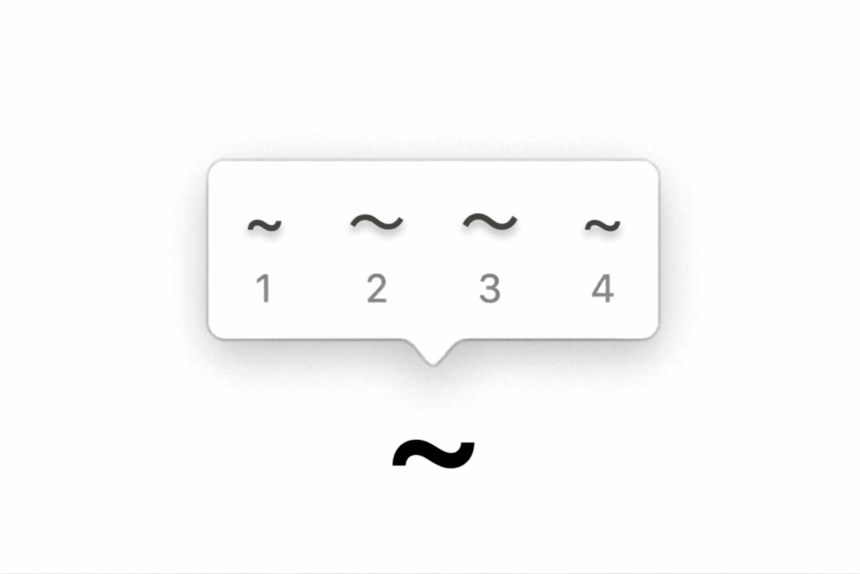
The tilde symbol (~) is a small wavy line that appears above the keyboard’s backtick key on many layouts. It is commonly used in programming, command-line paths, mathematics, linguistics, and Spanish and Portuguese words.
If you’re wondering how to type the tilde symbol on a keyboard, the good news is that you usually don’t need a special keyboard or software.
The method depends on your device and keyboard layout. On a standard US keyboard, the tilde is usually typed with a simple Shift + ` keyboard shortcut.
In this guide, you’ll learn how to type ~ on Windows, Mac, Chromebook, iPhone, Android, and different keyboard layouts, plus how to type letters with a tilde such as ñ, ã, and õ.
What Is the Tilde Symbol?
The tilde is written as:
~
It looks like a small horizontal wave or curved line. The symbol has several different uses depending on the context.
For example:
- Programming:
~/Documents - Linux/macOS paths:
~/Desktop - Mathematics: approximately or related notation
- Linguistics: pronunciation or nasalization
- Spanish: ñ
- Portuguese: ã and õ
- Text: approximately, as in
~10 minutes
The tilde symbol is different from the hyphen (-), underscore (_), and dash (—).
How to Type the Tilde (~) on Windows
On a standard US English keyboard, the easiest way to type a tilde is:
Shift + `
The backtick key is usually located:
- Below the Esc key
- Above the Tab key
- To the left of the number 1
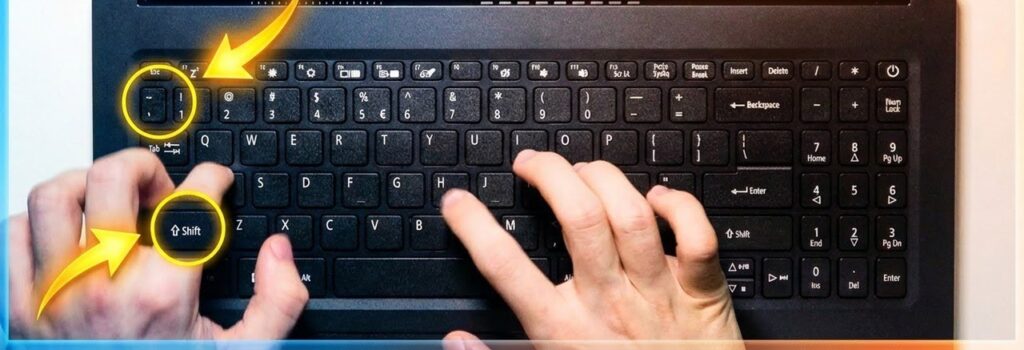
To type the tilde:
- Locate the ` key.
- Hold Shift.
- Press the ` key.
- Release both keys.
You should get:
~
What Is the Difference Between ` and ~?
The same keyboard key typically contains two symbols:
`
~
The backtick or grave accent is produced by pressing the key by itself:
`
The tilde is produced by holding Shift:
Shift + ` → ~
This is why you may accidentally type a backtick when you’re trying to enter a tilde.
How to Type the Tilde on a Mac
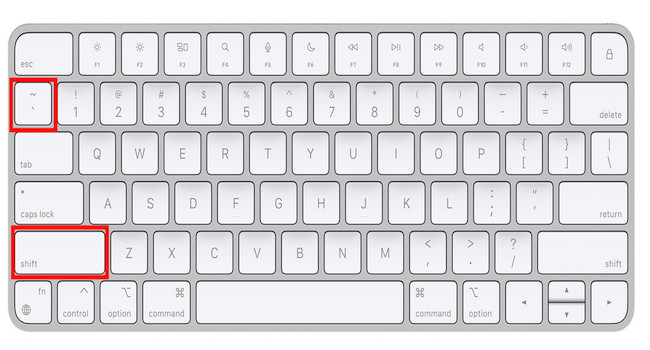
On a Mac with a standard US keyboard, use:
Shift + `
The tilde key is located near the upper-left corner of the keyboard, next to the number 1.
Press:
Shift + `
to produce:
~
This works in applications such as:
- Notes
- TextEdit
- Pages
- Microsoft Word
- Safari
- Terminal
- Code editors
How to Type the Tilde on a Chromebook
On most Chromebooks using a standard US keyboard layout, you can type the tilde with:
Shift + `
The key is usually located to the left of the number 1 and below the Esc key.
If that shortcut doesn’t produce ~, check your Chromebook’s keyboard language or layout settings.
Different keyboard layouts can place punctuation and symbols in different locations.
Use the On-Screen Keyboard
If you’re unsure where the tilde is located, you can also use the Chromebook’s on-screen keyboard when available.
Open the on-screen keyboard and look for the tilde or alternate symbol associated with the backtick key.
For more Chromebook character shortcuts, see [link to Chromebook special characters guide].
How to Type the Tilde on a Laptop Without a Number Pad
The tilde doesn’t require a numeric keypad. On most standard laptop keyboards, simply press:
Shift + `
The important part is finding the correct key.
Look for a key containing:
` ~
It is usually near the top-left corner of the keyboard.
If your laptop uses a non-US keyboard layout, the tilde may be located somewhere else.
How to Type the Tilde on iPhone
On an iPhone, you can access the tilde through the on-screen keyboard.
- Open any app where you can type.
- Tap the 123 key to switch to numbers and symbols.
- Look for the tilde symbol.
- Tap ~.
On some keyboard configurations, you may need to press and hold a related punctuation key to reveal additional symbols.
If you frequently type special characters, you can also add another keyboard language through:
Settings → General → Keyboard
The exact symbols available can vary depending on your selected keyboard and language.
How to Type the Tilde on Android
On Android, the exact location of the tilde depends on your keyboard app.
With many versions of Gboard:
- Open the keyboard.
- Tap ?123.
- Look through the available symbols.
- Find and tap ~.
If you don’t see it immediately, check the additional symbols page by tapping the relevant symbol key.
Different Android keyboard applications may arrange symbols differently.
How to Type a Tilde With a Letter
The tilde is also used as a diacritic, meaning it can be placed above a letter.
Some common examples include:
- ñ
- Ñ
- ã
- Ã
- õ
- Õ
These characters are common in Spanish and Portuguese.
For example:
España
contains ñ, while Portuguese uses characters such as:
São
How to Type ñ on Windows
One common Windows method is:
Alt + 164 → ñ
For uppercase:
Alt + 165 → Ñ
These traditional Alt codes generally require a numeric keypad.
You can also use the Windows language and keyboard settings to type accented characters more naturally.
How to Type ñ on Mac
On a Mac, press and hold the N key.
An accent menu should appear with available variations.
Select:
ñ
You can also use the appropriate keyboard shortcut for your selected keyboard layout.
How to Type ñ on iPhone and Android
On a touchscreen keyboard:
- Press and hold N.
- Wait for the accented-character menu.
- Slide to ñ.
- Release your finger.
This long-press method is one of the easiest ways to type Spanish characters on a phone.
How to Type ã and õ
The letters ã and õ are commonly used in Portuguese.
On many modern operating systems, you can enter them through the keyboard’s accent system.
On a Mac, for example, you can use the tilde accent shortcut followed by the appropriate letter.
The general pattern is:
Tilde accent + letter
This produces:
ã
or:
õ
On phones, press and hold A or O and select the appropriate accented character.
On Windows, an international keyboard layout can make these characters much easier to type regularly.
How to Type the Tilde in Microsoft Word
If you’re using Microsoft Word, you can type the tilde directly with your keyboard.
On a standard US keyboard:
Shift + `
produces:
~
You can also use Word’s special-character tools when you need a particular Unicode character.
Go to:
Insert → Symbol → More Symbols
Then search through the available characters.
This is particularly useful if you’re looking for a specialized tilde character rather than the standard ASCII tilde.
How to Type the Tilde in Google Docs
In Google Docs, you can type the tilde using your normal keyboard shortcut:
Shift + `
You can also use:
Insert → Special characters
if you need a character that isn’t easily available from your keyboard.
The Special characters tool allows you to search for characters by name or browse through categories.
How to Type the Tilde in Terminal
The tilde is particularly important in macOS and Linux Terminal commands.
For example:
cd ~/DocumentsHere, ~ commonly represents your home directory.
You can type it using:
Shift + `
For example:
ls ~or:
cd ~/DesktopIn a Unix-style command line, the tilde can have a special meaning, so don’t replace it with a similar-looking symbol.
How to Type the Tilde in Programming
The tilde also appears in many programming languages.
For example, you may encounter:
~or:
~10Its meaning depends on the programming language.
In some programming languages, ~ is used as a bitwise NOT operator. In package-management systems and configuration files, it can have other meanings.
In Markdown, two tildes are commonly used in some environments to represent strikethrough text:
~~strikethrough~~The important thing is that the character is the actual tilde:
~
and not a similar-looking Unicode symbol.
How to Type the Tilde on a UK Keyboard
Keyboard layouts can change the location of punctuation symbols.
On a UK keyboard, the tilde is associated with the key containing the backtick and tilde, but the physical layout and surrounding keys can differ from a US keyboard.
If Shift + ` doesn’t produce the expected result, check which keyboard layout Windows or macOS is currently using.
On Windows, you can switch between installed keyboard layouts using the language/input controls.
How to Type the Tilde on an International Keyboard
International keyboard layouts may handle the tilde differently.
Some layouts treat the tilde as a dead key.
A dead key doesn’t immediately produce a standalone character. Instead, it waits for another key so it can create an accented character.
For example, a tilde dead key followed by N may produce:
ñ
If you want the standalone tilde instead, the required shortcut can depend on the selected layout.
If your keyboard behaves differently from the shortcuts in this guide, check the active keyboard language first.
How to Type a Tilde Using Unicode
The standard tilde character has Unicode code point:
U+007E
This is the regular tilde used in programming and plain text.
If your application supports Unicode input, you can use its character-insertion tools to find the symbol.
For example, in a character map or special-character utility, search for:
tilde
and select:
~
This is useful when you cannot find the key on your physical keyboard.
Tilde Symbol Keyboard Shortcut
| Device | Shortcut/Method |
|---|---|
| Windows US keyboard | Shift + ` |
| Mac US keyboard | Shift + ` |
| Chromebook US keyboard | Shift + ` |
| iPhone | 123 → symbols → ~ |
| Android | ?123 → symbols → ~ |
| Word | Shift + ` or Insert → Symbol |
| Google Docs | Shift + ` or Insert → Special characters |
| Unicode | U+007E |
For a standard US keyboard, remember one shortcut: Shift + backtick (`) = tilde (~).
Tilde Symbol vs Similar Characters
Several characters can look similar to a tilde, but they aren’t always interchangeable.
| Character | Description |
|---|---|
| ~ | Standard tilde |
| ` | Grave accent/backtick |
| – | Hyphen-minus |
| _ | Underscore |
| − | Minus sign |
| ˜ | Spacing tilde |
This distinction matters in programming and command-line environments.
For example:
~/Documentsis not the same as:
`/DocumentsUse the standard tilde ~ When a command, programming language, or application specifically requires the tilde character.
Frequently Asked Questions
How do I type the tilde symbol on a keyboard?
On most US keyboards, press Shift + `. The backtick/tilde key is usually located below Esc and to the left of the number 1.
What key is the tilde on a keyboard?
The tilde is commonly located on the same key as the backtick (`), near the upper-left corner of a standard keyboard.
How do I type ~ on a laptop?
Press Shift + ` on a standard US laptop keyboard. If you’re using another keyboard layout, the tilde may be located elsewhere.
How do I type ~ on a Mac?
Press Shift + ` on a standard US Mac keyboard.
How do I type ~ on Windows?
Press Shift + ` on a standard US Windows keyboard. You can also use character-insertion tools if your keyboard layout doesn’t provide the expected shortcut.
How do I type a tilde over a letter?
Use an accented-character input method. On many touchscreen keyboards, press and hold the letter and select its tilde-accented version. Common examples include ñ, ã, and õ.
Why does Shift + ` not type a tilde?
Your computer may be using a different keyboard layout, or the key may be configured differently. Check your active keyboard language and layout.










 is a small wavy line that appears above the keyboard's backtick key on many layouts. It is commonly used)