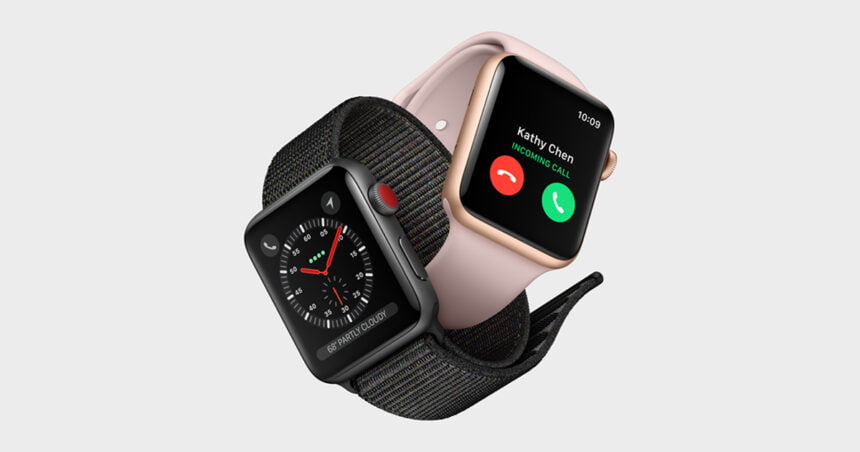
The Apple Watch stands as Apple’s premiere smartwatch, blending a robust feature set with the intuitive ease of use the tech giant is renowned for. If you’ve recently purchased one of these sleek wearables, spending some time customising your settings ensures you get the most out of your new device.
How to set up Apple Watch
Even after unboxing your new Apple Watch, there are a few important steps before it’s fully ready to use. The first time you turn it on, the screen will prompt you to connect it to an iPhone. This pairing is essential-the watch can’t be set up or used properly without an Apple smartphone.
That’s because the iPhone handles almost everything during the initial setup. It links your Apple ID, activates Siri, sets up Apple Pay, adds a passcode, installs supported apps, and configures key features that the watch depends on.
Once the Apple Watch is powered on, simply keep it close to your iPhone and wait for the pairing instructions to appear on your iPhone’s screen. When the devices are connected, open the Watch app on your phone and adjust the settings to suit your preferences. This final step helps tailor the watch to your daily routine, making the overall experience smoother.
Apple Watch Essential Settings
When you open the Watch app for the first time, it’s worth exploring the options under General and Accessibility. These areas allow you to fine-tune how the Apple Watch fits into your routine-things like which wrist you wear it on, how it connects with your iPhone, iPad, or Mac, as well as display contrast, touch sensitivity, and other usability settings.
After selecting your preferences, you can determine how the watch behaves throughout the day. By default, it mirrors your iPhone’s notifications, sending every alert straight to your wrist. If that feels overwhelming, the Watch app makes it easy to limit notifications to only the apps you care about-or silence them entirely.
To adjust activity-related alerts, open the Activity section on your Apple Watch. There, you can keep notifications on, send them straight to Notification Center, or switch them off. You can also manage reminders to stand, workout alerts, progress updates, challenges, and more.
For deeper control, return to the My Watch tab and tap Notifications. This page shows every installed app on both iOS and watchOS and lets you set how each one behaves on the watch.
A helpful perk: you can choose which iPhone apps are allowed to send alerts to your Apple Watch-even if the app itself can’t run on watchOS. This is especially useful for apps like WhatsApp, which don’t have a native watch version but can still forward messages and notifications.
Apple Watch Faces

Apple Watch faces make the experience of checking your watch more personal and fun. By default, the watch face appears whenever you raise your wrist, look for notifications, or open the Dock. There are many styles to choose from, each offering its own colours and “complications”-small widgets that show things like the weather, your next calendar event, or music controls.
If none of the built-in designs appeal to you, you can create your own. The Watch app allows you to use a photo from your iPhone’s library as the background, giving you full control over how the watch face appears and what information it displays.
Owners of the Apple Watch Series 5, 6, and 7 also have access to the always-on display, which keeps the screen visible even when the watch is idle. While convenient, this feature uses more battery and may affect long-term durability. If you’d rather turn it off, you can do that in the Display & Brightness section of the Watch app.
Apple Watch Activity Goals
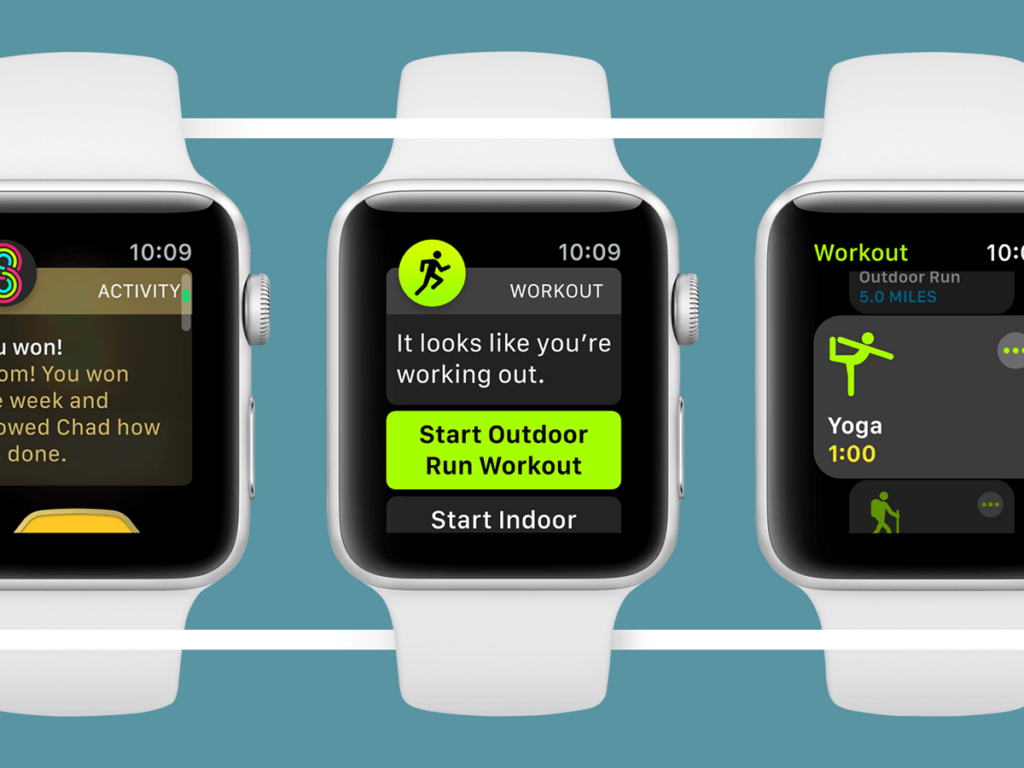
A standout feature of the Apple Watch is its ability to track your daily activity and fitness habits. Working alongside the Health app, it records your steps, checks your heart rate, and gathers useful data throughout the day-even when you’re not actively exercising.
Your activity is measured through three rings: Move, Exercise, and Stand. You set the targets for each one, and the watch tracks how many calories you’ve burned, how long you’ve exercised, and how often you’ve been on your feet.
For new users, the watch starts with preset goals: 30 minutes of exercise and 12 hours of standing. However, these can easily be adjusted to fit your own routine. Open the Fitness app on your watch, tap “Change Goals,” and adjust each ring to suit your lifestyle-especially if you’re consistent with gym workouts or other physical activities.
The Fitness app also adds a fun layer of motivation. You earn badges as you hit milestones, and you can challenge friends to a seven-day competition, with both sides seeing each other’s progress in real time.
To track a specific workout, open the Workout (Exercise) app on your watch. You’ll find logs for all kinds of activities-walking, running, rowing, Pilates, dancing, and several others.
All of your activity, sleep, and health information is also saved in the Health app, providing a comprehensive view of your heart health, movement, and overall wellness.
Music and Podcasts on Apple Watch
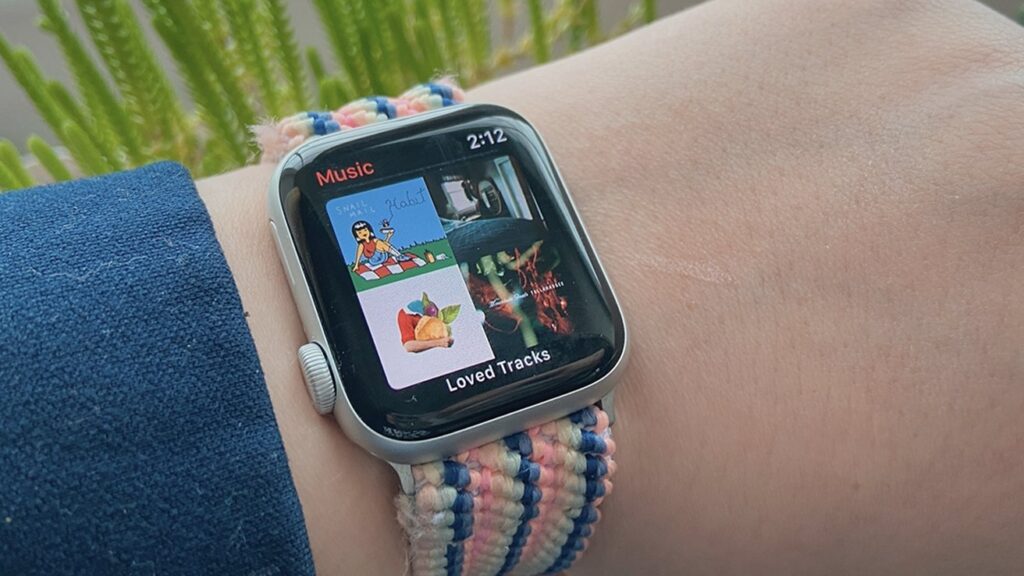
Doing your everyday stuff while enjoying your favourite tunes and podcasts is a breeze with the Apple Watch. It lets you stream audio from Apple Music and major players like Spotify directly, eliminating the need to mess around with your iPhone. And the best part? You can set things up to store music right on your watch, perfect for those without a mobile-compatible model.
For Apple Music lovers, just pick your go-to songs and playlists using the Watch app on your iPhone. To save you from constantly adjusting your music settings, flip on the “Recent Music” feature. It automatically downloads the songs you’ve been vibing with lately.
Now, if you’re using Spotify or Deezer, you’ll need to set up your iPhone’s streaming app to get your music on the watch. Over at All Tech Nerd, we’ve got a tutorial that walks you through downloading music for offline listening on your Apple Watch. Check it out!
Payments on Apple Watch
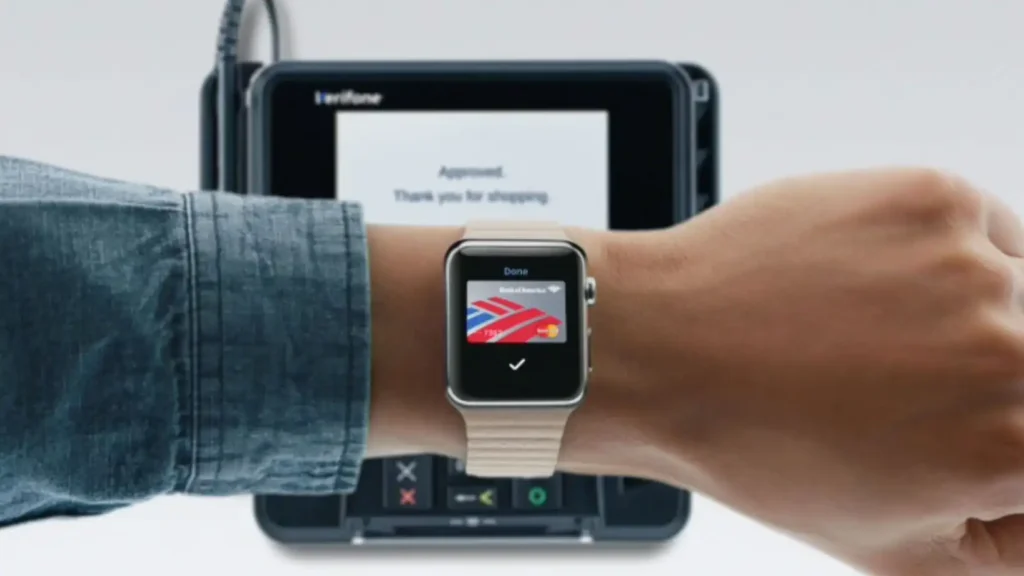
Paying for stuff at stores is super easy with your Apple Watch. Set up a payment method, such as a credit card, and bring your watch close to an NFC-enabled machine at the store. It’s a quick and secure way to handle transactions, allowing you to leave your wallet at home for added convenience and peace of mind.
This comes in handy, especially after a workout when you want to grab something from the store. If you’re not sure how to set up payments on your watch, we’ve got you covered in our article on paying with your Apple Watch. Check it out!
Set up for family members
If someone in your family has an Apple Watch but no iPhone, you can set them up in your Family Sharing group and manage their usage. This is especially handy for kids or seniors who may not be familiar with smartphones. It’s essential to note that you must be the parent or guardian in the Family Sharing group.
As the family organiser, and with the help of Screen Time, you can manage various actions, including: [Details about actions can be added based on the content that follows in the original text, which is not provided in your current request.]
- Communication limits
- Time to not use the device, including a special function for school hours
- Apple ID and email account control
- Restriction of explicit content, purchases, and privacy
Here’s how to set up Apple Watch for a child, senior, or family member in Home Sharing:
- Ask the family member to wear the Apple Watch on their wrist. Help him adjust the wristband so that he is comfortable.
- Bring the watch closer to the iPhone to start pairing the devices. Or, on iPhone, open the Watch app, go to “All Watches” and tap “Pair New Apple Watch”;
- Choose the option “Set up for a Family Member” and tap “Continue;
- When prompted, position the iPhone’s camera viewfinder on the Apple Watch screen to begin pairing.
- Tap “Set Up Apple Watch” and follow the onscreen instructions.
Other Apple Watch functions
Your Apple Watch isn’t just a timepiece – it’s packed with features and apps that can make your daily life easier. From built-in functions to third-party apps on the App Store, there are countless ways to use it. For example, you can explore 20 different functions and tweaks, or even get tips on improving your toothbrushing routine right on your Apple Watch.
To discover more tips and explore features, check out the user manual in the Watch app on your iPhone. Just head to the “Discover” tab – it’s like a treasure trove of helpful information.
So, be curious about what your watch can do! Our quick guide is here to help you unlock all the practical and healthy benefits that your Apple Watch has to offer in your daily life.