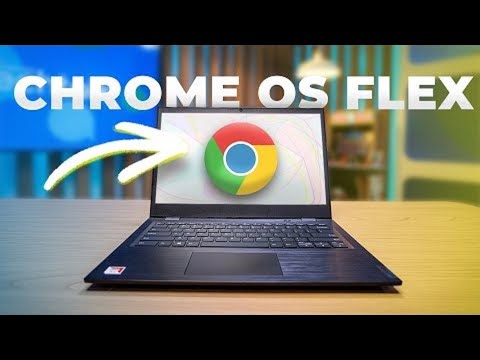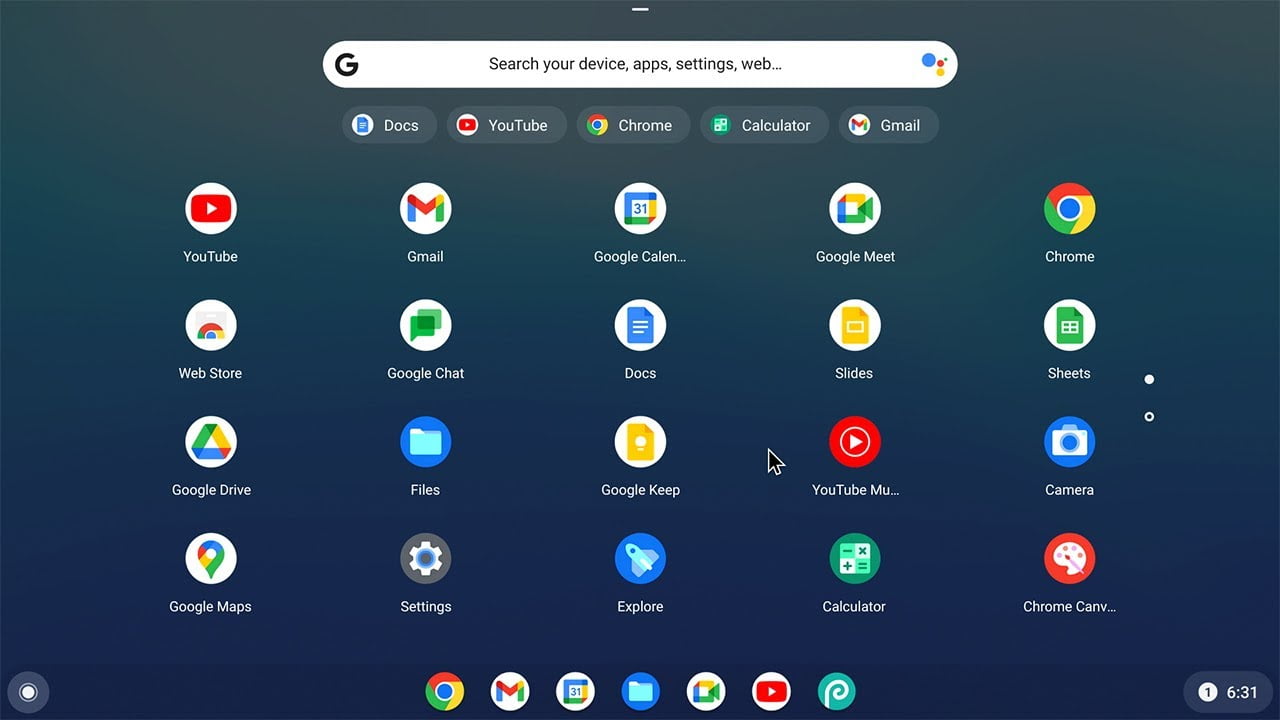
If you’ve got an older computer that struggles to handle everyday tasks like web browsing or word processing, there’s still hope. Google has come up with a clever way to breathe new life into ageing Macs and PCs by turning them into Chromebooks.
For example, if your old Mac is too slow for modern updates, Google’s ChromeOS Flex might be exactly what you need. Unlike Windows, it’s lightweight, easy to use, and designed for efficiency. It’s an ideal option for anyone who wants to keep using their computer without sacrificing performance or stepping outside the familiar Google ecosystem.
Minimum requirements
If you still use your computer’s operating system, macOS or Windows, OS Flex offers the possibility of dual booting. You can boot to Google’s system or your device’s default system. The minimum system requirements are:
- Intel or AMD x86-64-bit processor;
- RAM with 4 GB;
- Internal storage with 16 GB;
- BIOS access;
- A Windows, macOS, or Chrome OS computer to set up a bootable USB stick.
Although Chrome Flex OS is still developing, occasional instabilities and crashes may occur. Some bugs may appear with continued use, but the performance is quite pleasant, so it should not interfere with usability. Please note that this version does not include Android apps, as they are not supported.
System restrictions
Many features of your computer require compatibility with Chrome OS Flex. These include CD and DVD readers, facial recognition, touch screens or styluses, Thunderbolt features, and fingerprint readers. While Google may add these features and make the system more compatible at some point in the future, certain aspects do not function properly in Chrome OS Flex.
How to install
Before installing, ensure you get an 8GB or larger USB flash drive. Then sign up on the Google Enterprise website to receive Flex OS for free. Then follow the guidelines below:
- Enter the Chrome Web Store and search for the “Chromebook Recovery Utility” extension.
- Click “Use in Chrome” to install the extension in your browser.
- Open the extensions in Google Chrome through the puzzle piece button (in the upper right corner of the screen);
- Click on “Chromebook Recovery Utility” and select the “First Step” option;
- In “Select a model from the list”, choose “Google Chrome OS Flex” and, in the product option, choose “Chrome OS Flex (Developer-Unstable)”;
- Click “Continue” and insert a USB drive into your computer’s USB port. Then select it and click “Continue”;
- All data on the USB flash drive will be erased in this step. Then, click “Create Now” and wait while the extension creates a bootable USB stick with OS Flex built in;
- Once finished, restart your computer. Then, enter the system BIOS (refer to your motherboard’s instructions on how to do so) or press the Option key on a Mac.
- In the BIOS, go to the “Boot” option, change the order, and put the flash drive at the top of the list. Then save the settings and restart your computer. On Mac, select the bootable flash drive and press Return.
Ready! Follow the on-screen instructions to install Chrome OS Flex on your computer. You can also use the operating system from the flash drive without installing it first to test its functions.